How to connect Insilico to Hyperliquid Using a Hardware Wallet
The following guide walks you through the steps of connecting Insilico to Hyperliquid. If you're in the US, Canada, or UK, please ensure you've activated a VPN with the location set to Australia before logging onto the Hyperliquid website.
Video Walkthrough:
Before you start this guide, please make sure you have:
-
Created a new Arbitrum account on your hardware wallet
HL03 | LG - How to add an Arbitrum account to your Ledger and link to Hyperliquid
HL03 | TZ - How to add an Arbitrum account to your Trezor and link to Hyperliquid
HL03 | TG - How to add ETH & USDC to your Tangem wallet and link to Hyperliquid
-
Funded that account with a small amount of ETH (for gas) and whatever amount of USDC you wish to trade with
HL04 | LG - How to transfer ETH & USDC to a Ledger On The Arbitrum Network
HL04 | TG - How to transfer ETH & USDC to a Tangem On The Arbitrum Network
HL04 | TZ - How to transfer ETH & USDC to a Trezor Wallet On The Arbitrum Network
-
Downloaded and installed a Metamask wallet (if you don’t have one already)
NOTE: you do NOT need to have previously connected your hardware wallet to Hyperliquid, nor do you need to have deposited funds into Hyperliquid. Both of those steps are covered during the Insilico setup process.
1. Import the Arbitrum account on your hardware wallet into Metamask
- Open up Metamask, click the dropdown next to your account name, then click “Add wallet” > “Add a hardware wallet”:
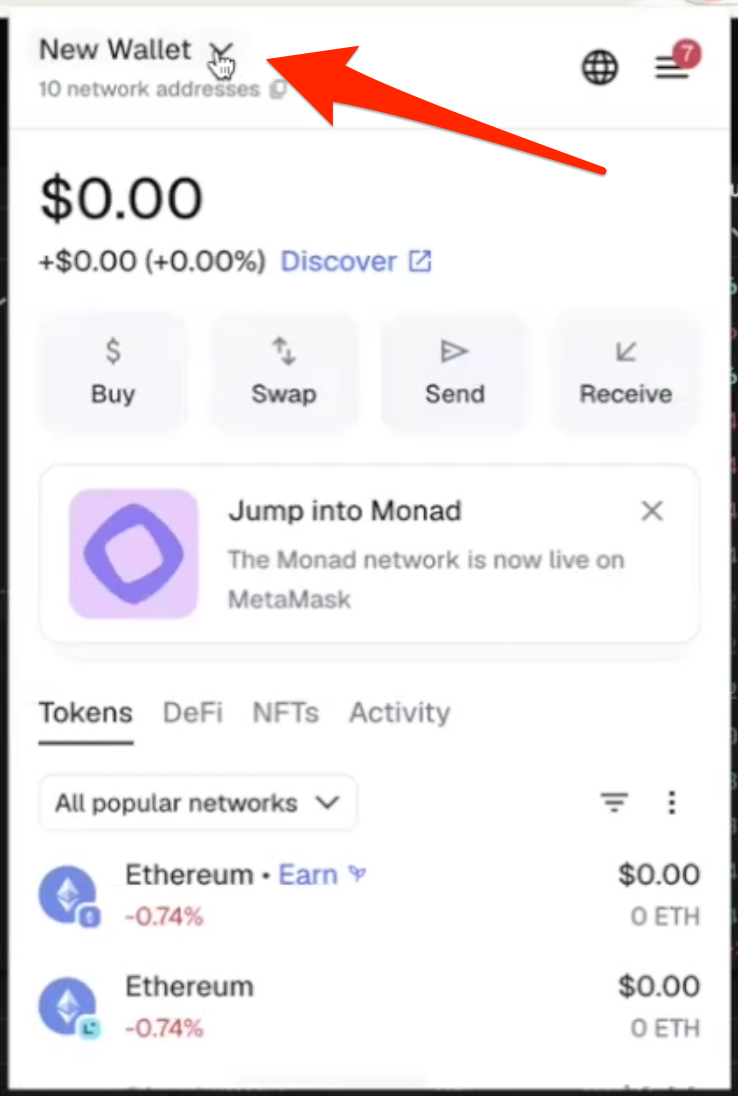
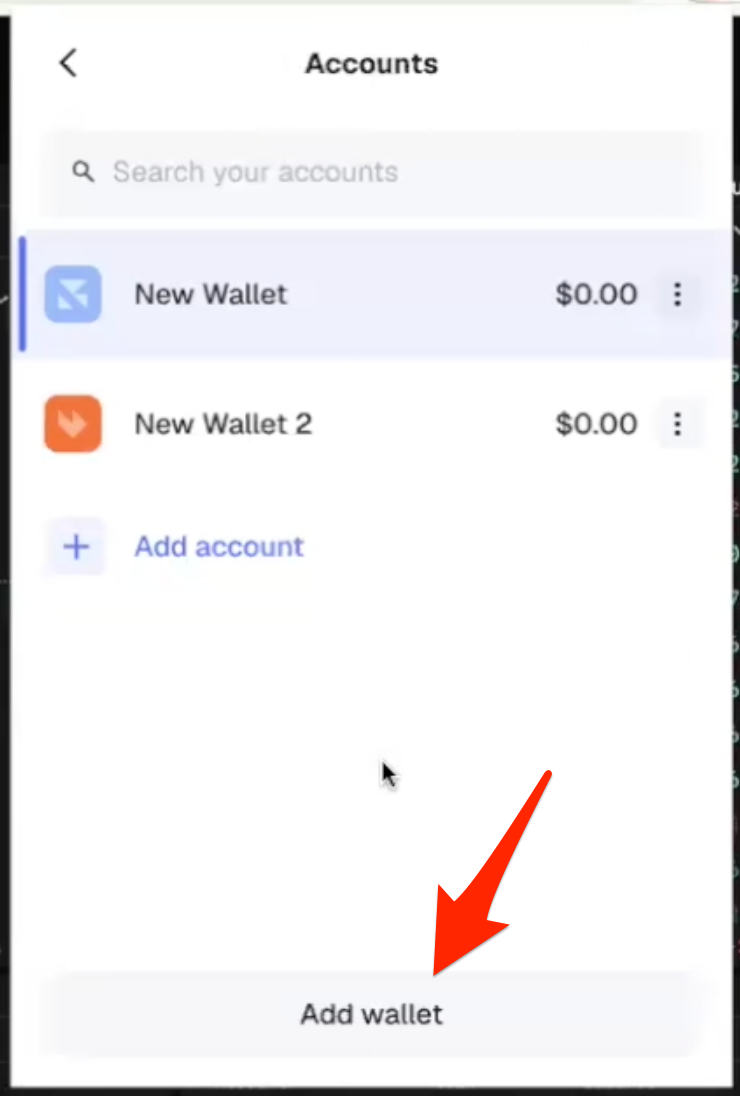
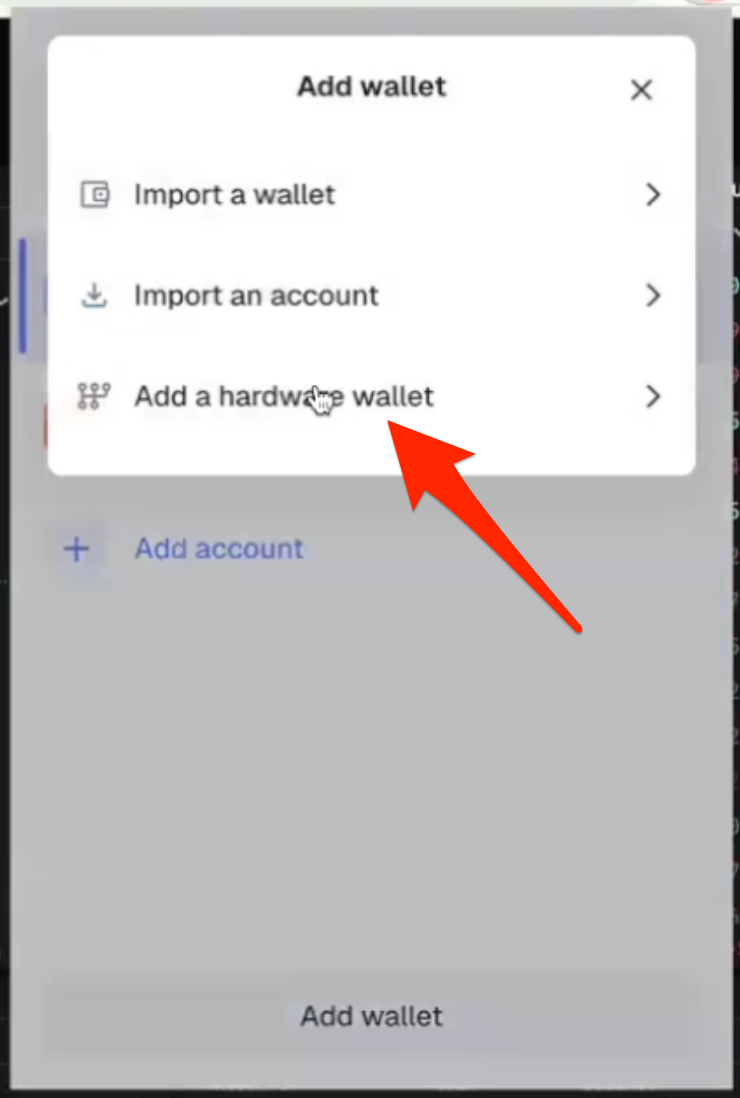
- Choose your wallet type (Ledger / Trezor / etc) and click “Continue”:

NOTE: you’ll need your wallet to be active, which means entering your PIN in if you need to. If you forget to do this you will get an error message, just enter the PIN and click “Continue” again and it should be fine.
NOTE: if you’re using a Ledger and you don’t already have blind signing enabled in the Ethereum app on the device, you will need to enable it to complete this transaction. Just open the Ethereum app, go to “app settings”, find the screen that says “blind signing disabled” and click both buttons on the device to enable it.
- Choose the correct account (make sure to choose the option that matches the address of the Arbitrum account you created on your hardware device for this), then click “Unlock”:
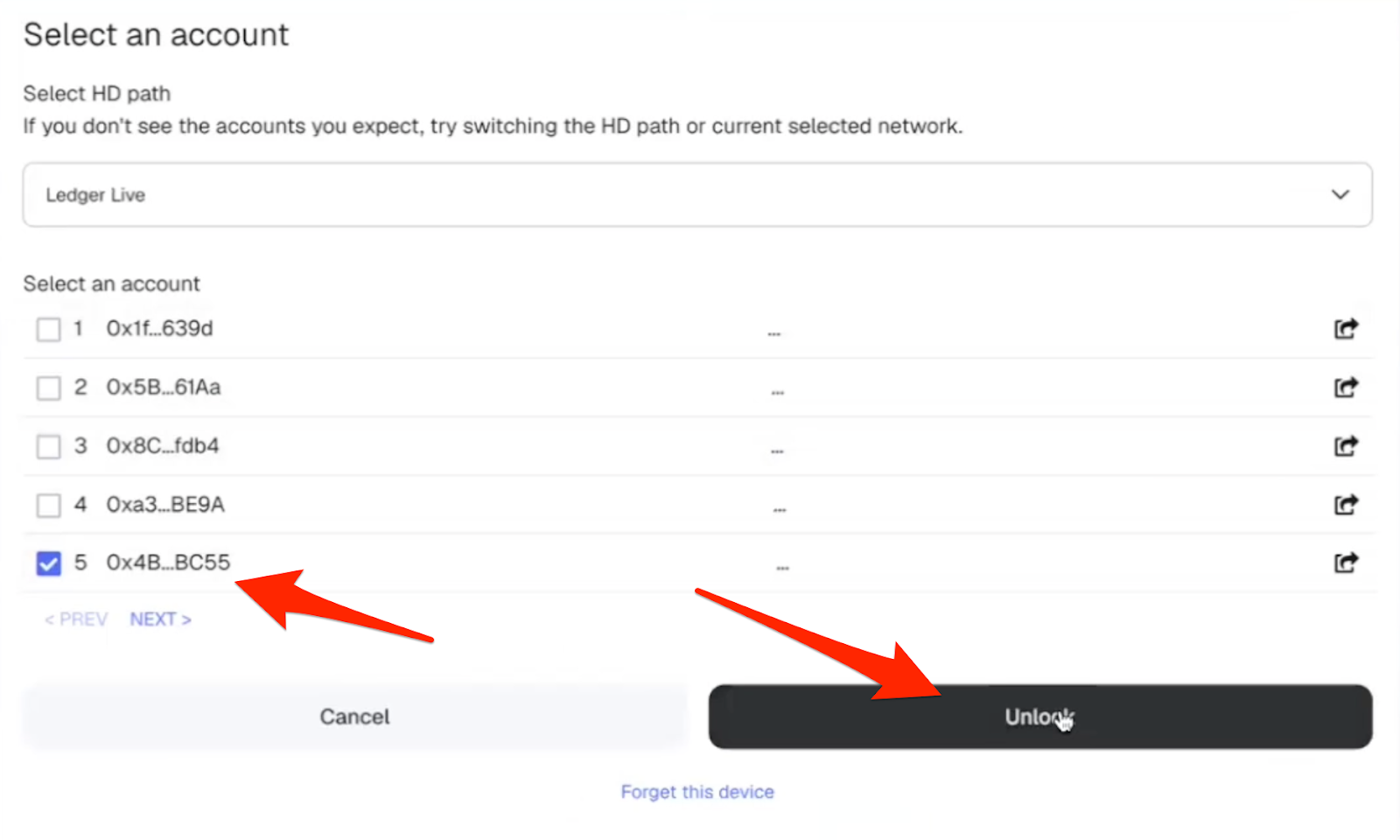
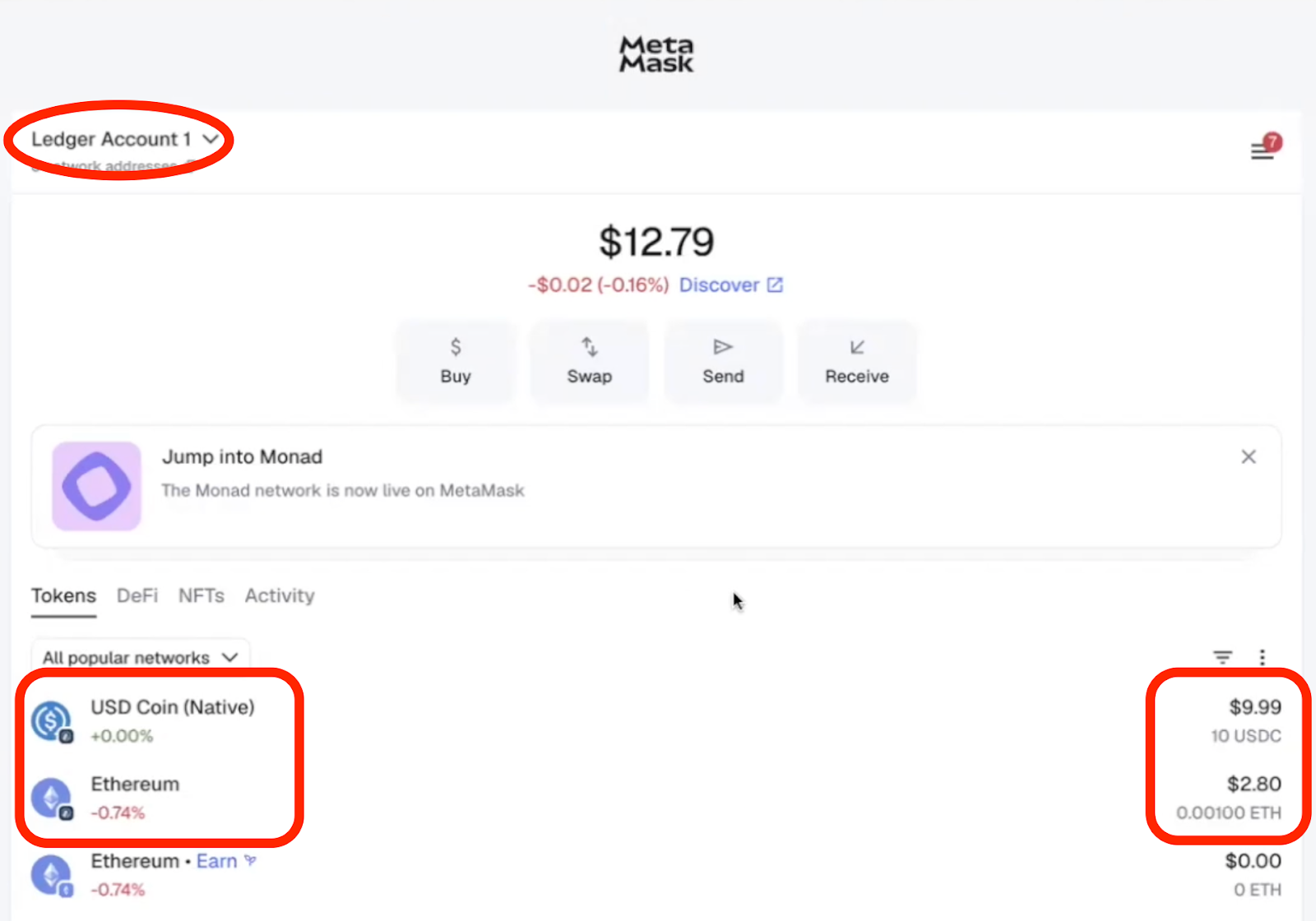
- Approve the connection on the hardware device. You should now be able to see your hardware wallet account in Metamask, along with the ETH and USDC balances on the Arbitrum network:
2. Create an account on Insilico
- Click this link to go to Insilico Terminal:
https://insilicoterminal.com/#/trade
- Once there, click on the green “Register” button on the left hand side:

- Click on “Sign up” (for some reason it defaults to Sign in, even when you click Register):

- Then enter your email address, set a password, and click “Continue”.
- Then go to your email inbox, find the verification email and click on the link to verify your email address.
- Clicking the emailed link will take you back to the Insilico homepage, where you just need to click on the “Trade Now” button to get back to the trading interface:

3. Connect your imported Arbitrum account to Insilico
- Once back on the trading interface, click on “Add an account” in the top left:

- Then click on “Add Account” in the pop-up modal:

- Choose Hyperliquid from the available options at the top of the modal:

- Click “CONNECT”, confirm it in Metamask, and sign off on your hardware wallet:

- Agree to the Hyperliquid terms & conditions and privacy policy, confirm it in Metamask, and sign off on your hardware wallet:

Note: as was the case when connecting your hardware wallet to Metamask, the wallet will need to be active (PIN entered) to complete this transaction. Blind signing will also need to be enabled on a Ledger, but that should have already been done earlier.
- Then choose the amount of USDC you want to deposit, confirm it in Metamask, and sign off on your hardware wallet:

- Give your account a name (only applies inside Insilico - doesn’t affect anything outside of that), confirm it in Metamask, and sign off on your hardware wallet.

The final step now to activate your Insilico trading dashboard is to confirm the connection between Insilico and Hyperliquid.
- To do that you go to the top left of the Insilico trading terminal, and find “ACCOUNTS”:

- Then it’s 3 clicks to complete the connection (followed by confirmation in Metamask and your hardware wallet):

That’s it, now your account should be set up and ready to go!