LG - How to connect your Ledger wallet via Metamask to Polymarket & fund your account
Reminder: Activate your VPN with a non-restricted location prior to opening the Polymarket website.
If you've never connected to Polymarket before, please ensure you complete all of the steps in this guide carefully, step-by-step, as they are all required in order to to establish a working, funded connection with Polymarket.
Due to the way WalletConnect currently translates the EIP-712 data provided by Polymarket, you will be required to link your Ledger to a Metamask wallet and complete your connection using this method (very similar to the Insilico connection method for YF10 members).
This solves the current known Polymarket issue because software wallets (like Metamask) parse the EIP-712 data differently than WalletConnect does.
If you're experiencing challenges connecting with Metamask, or would prefer to use an alternate browser wallet option, Rabby is a great choice. For more information on connecting your Ledger to a Rabby wallet, please see the official Ledger documentation:
https://support.ledger.com/article/4409801559569-zd
Before you start this guide, please make sure you have:
- Created a new Arbitrum account on your Ledger wallet:
Ledger: How to add an Arbitrum account to your Ledger hardware wallet
- Funded that account with a small amount of ETH (for gas) and whatever amount of USDC you wish to trade with
HL04 | LG - How to transfer ETH & USDC to a Ledger On The Arbitrum Network
- Downloaded and installed a Metamask (or Rabby) wallet (if you don’t have one already)
MM01 - How to set up a Metamask wallet
Step 1. Adding a Polygon Account to Your Ledger Device
You will need a Polygon account in your Ledger to connect to Polymarket, so the first thing we want to do is create one.
-
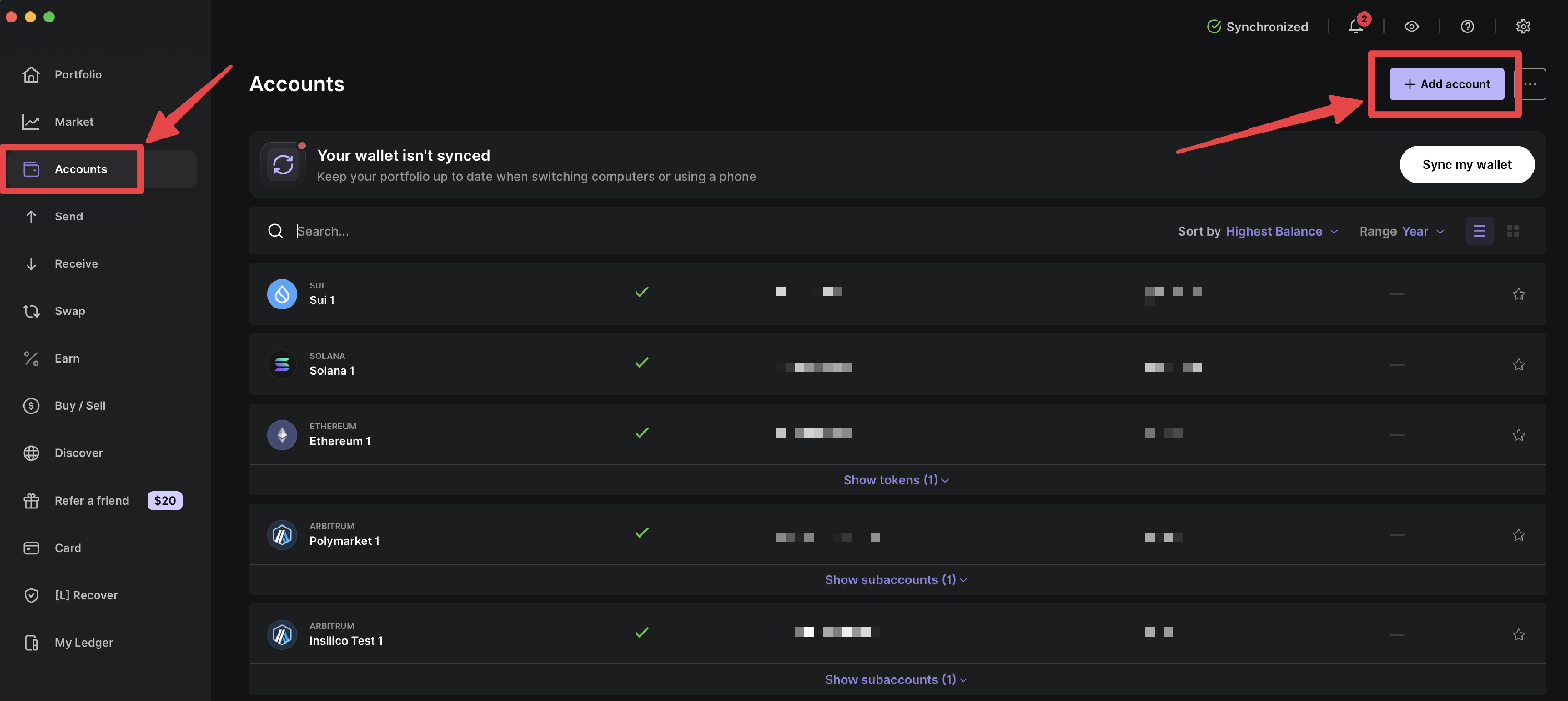
In Ledger Wallet, go to "Accounts" in the left navigation menu, then click on the "Add Account" button in the top right corner.
-
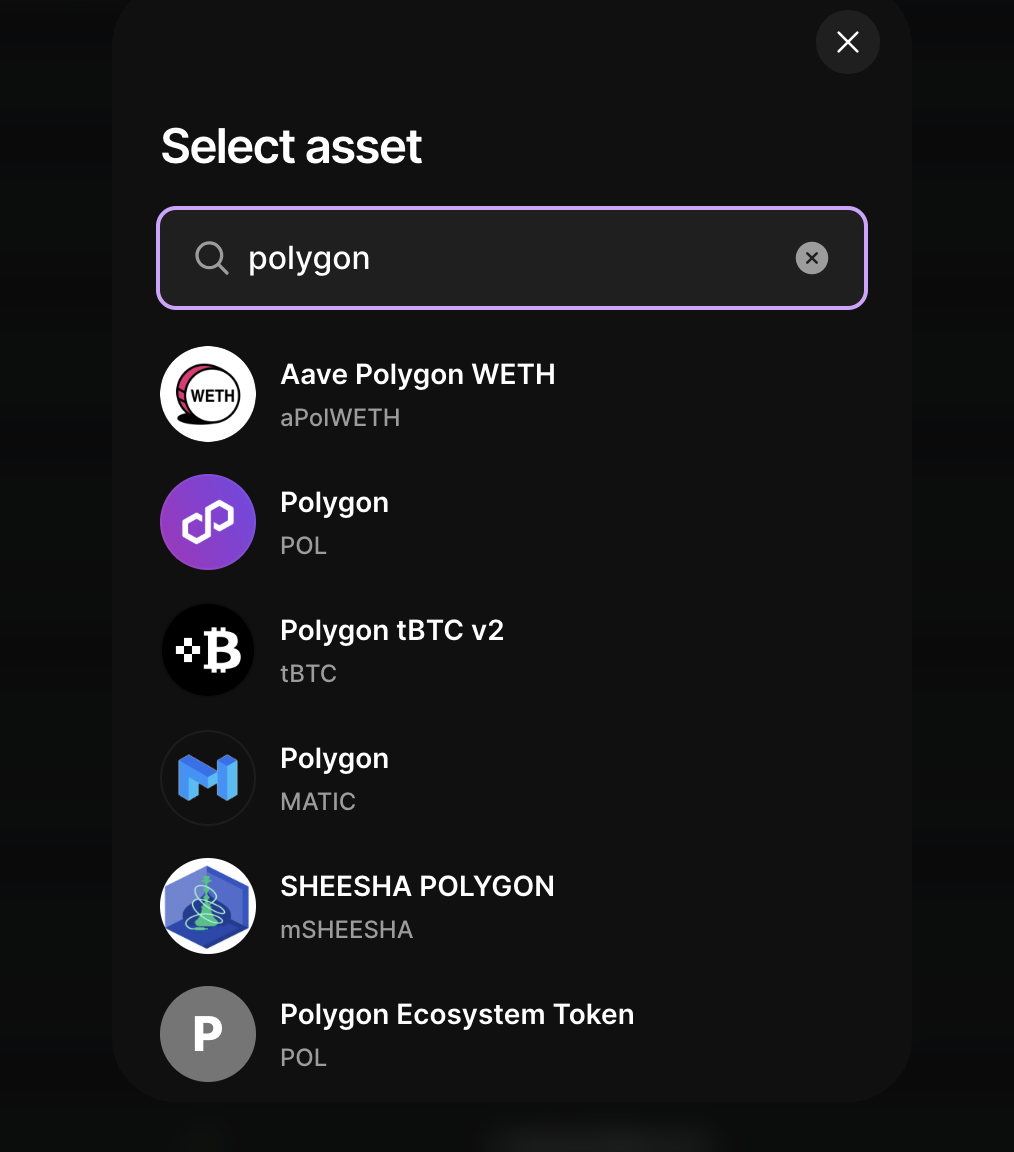
Type "polygon" in the search box, and select Polygon (POL) from the list.
-
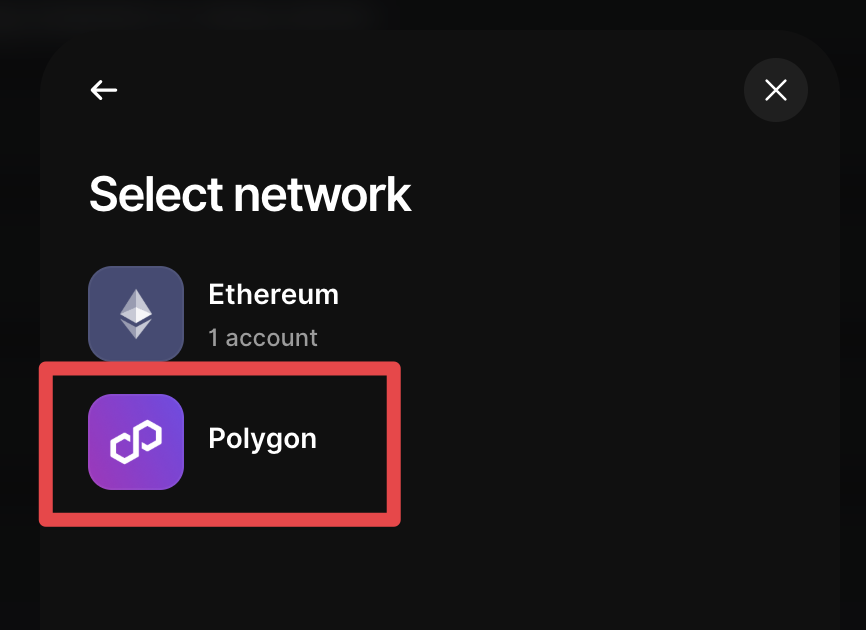
Select Network: Polygon
-
If you only have one Arbitrum/Ethereum account on your Ledger, then you may only have one corresponding Polygon account to choose from, so select that one and click "Confirm".
If you have more than one Arbitrum/Ethereum account on your Ledger, you may see multiple options come up as in the screenshot below. You only need one, so choose the account with the same address as the Arbitrum account you've already funded, and deselect any others. Then click "Confirm".
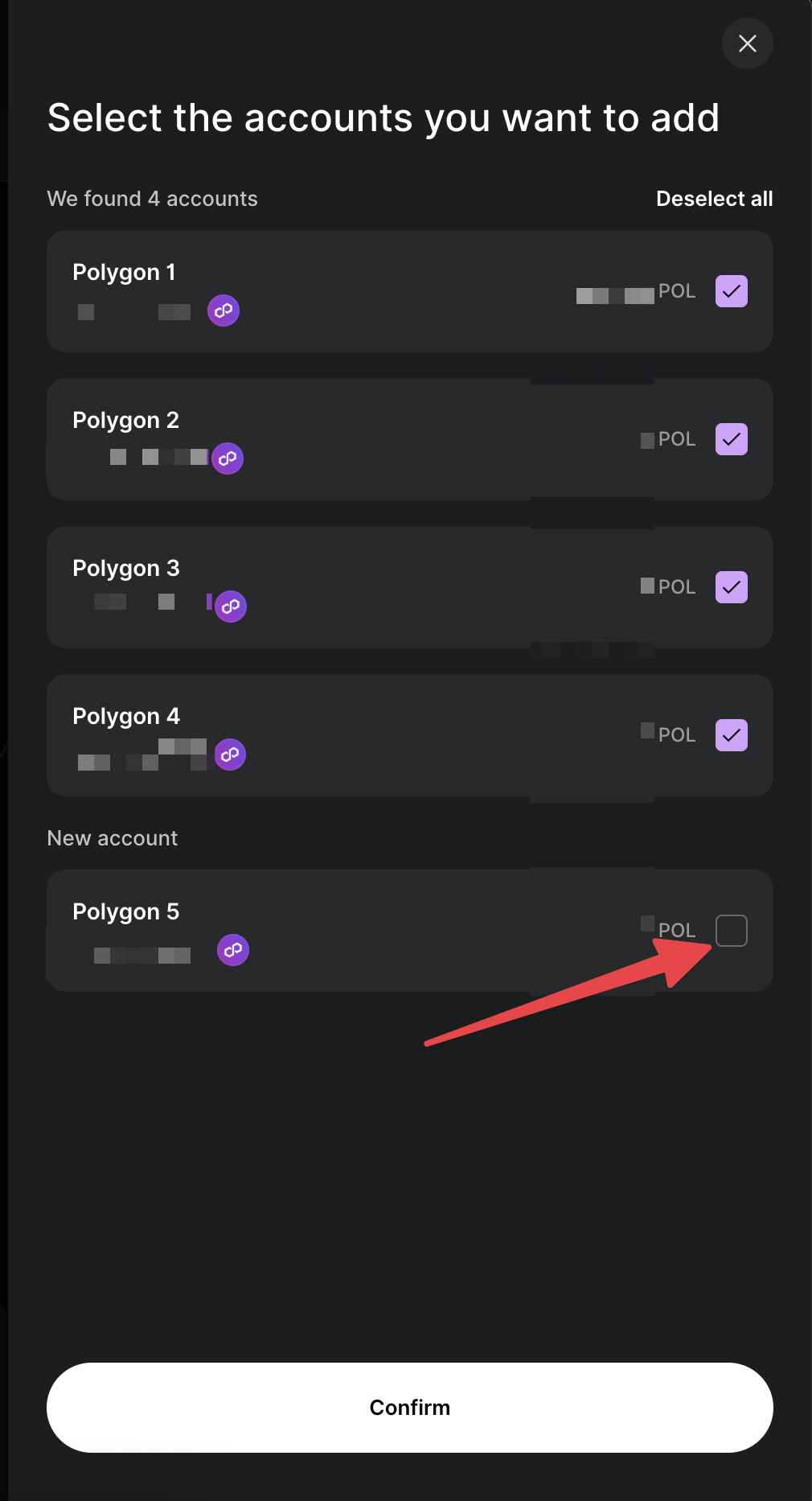
-
At this point you could just click close, however it is good practice to name your accounts so you know what they're being used for. So click the pencil icon next to the amount in the account.
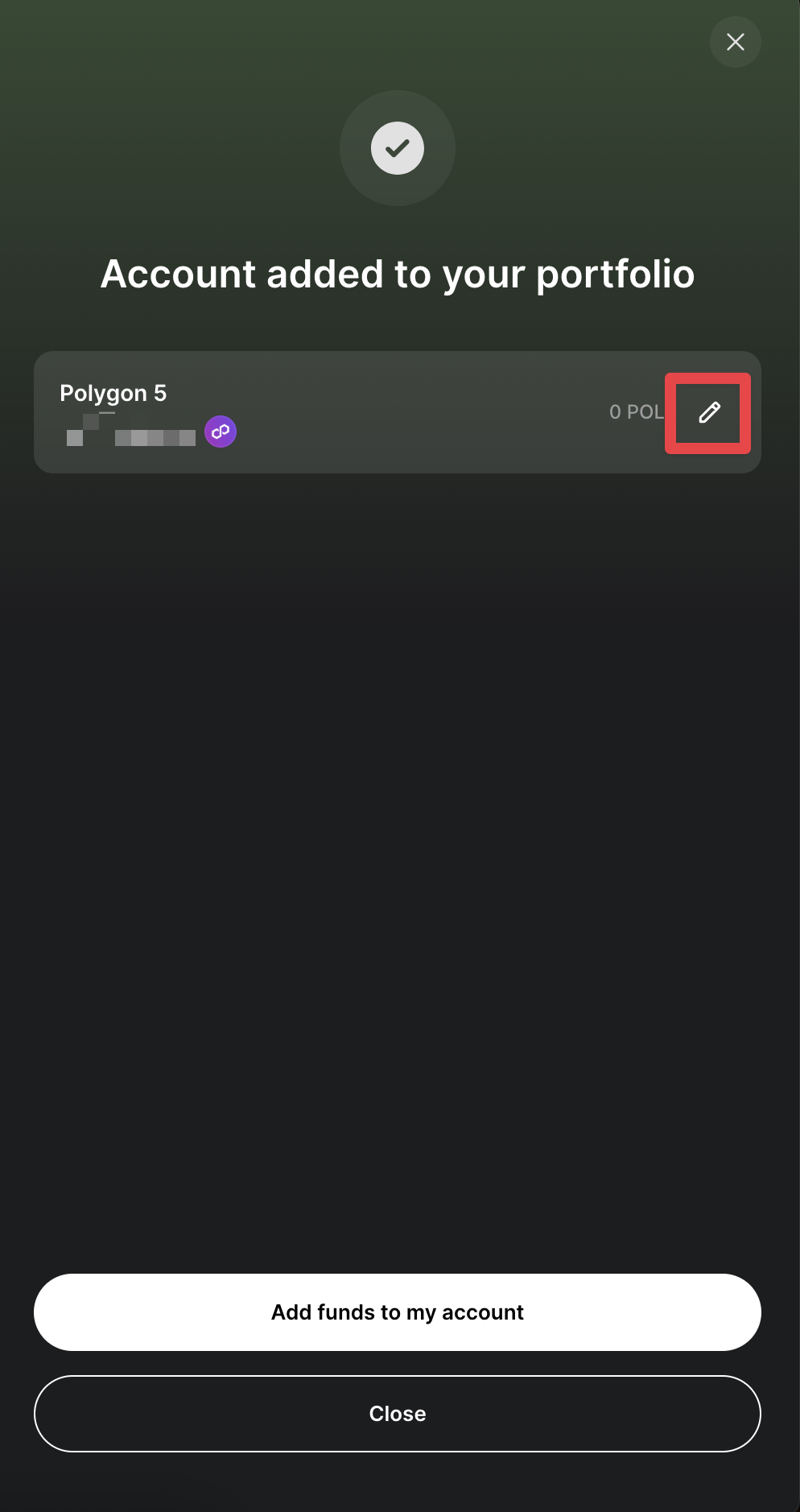
-
Type in the name you want, then click "Save".
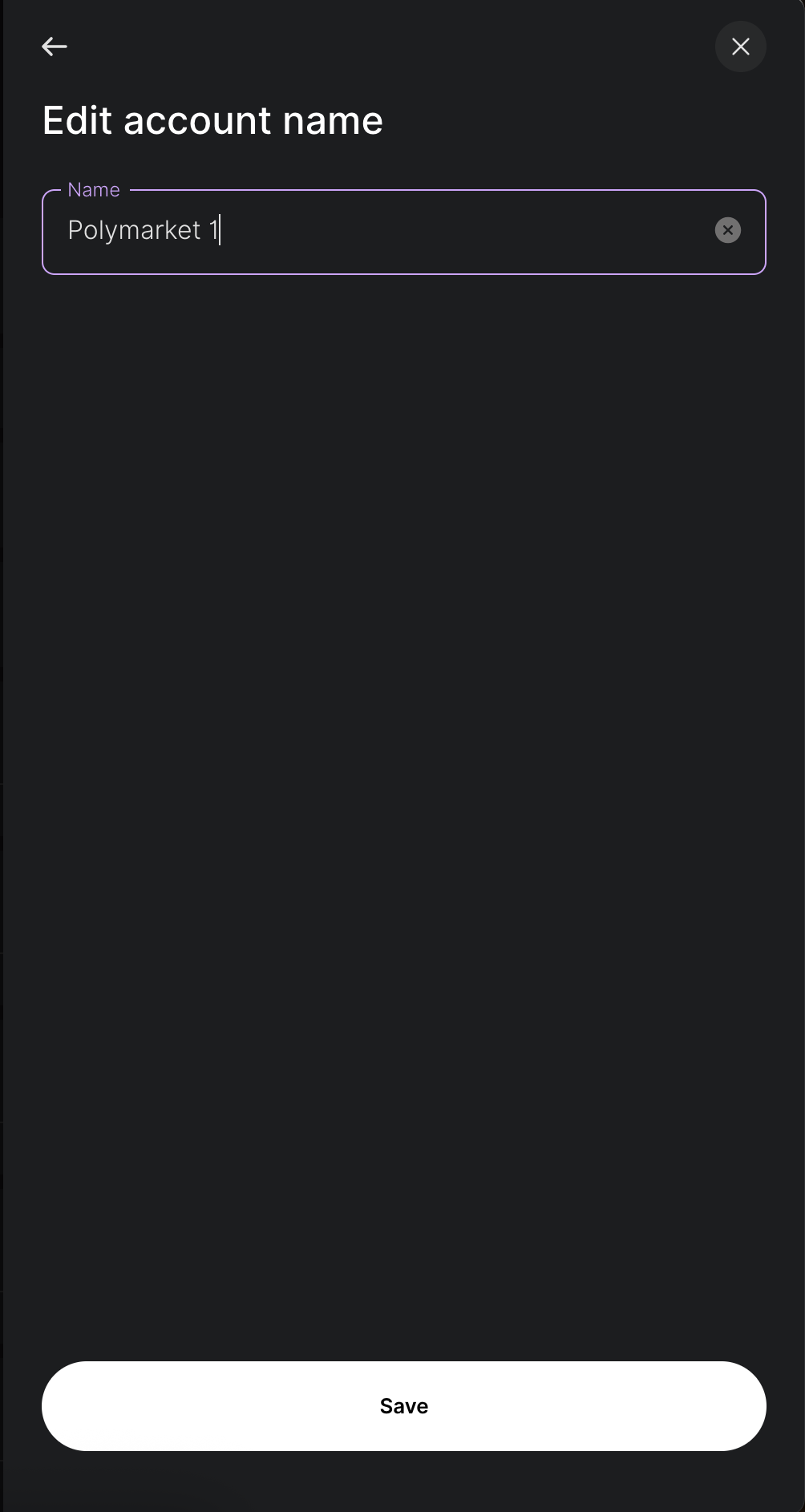
- Now click "Close".
NOTE: you do not need to put anything in the Polygon account, because we're going to fund using the Arbitrum account. The Polygon account just needs to exist so we can use it to connect to Polymarket.

Step 2. Import the Arbitrum account on your Ledger into Metamask
- Open up Metamask, click the dropdown next to your account name, then click “Add wallet” > “Add a hardware wallet”:
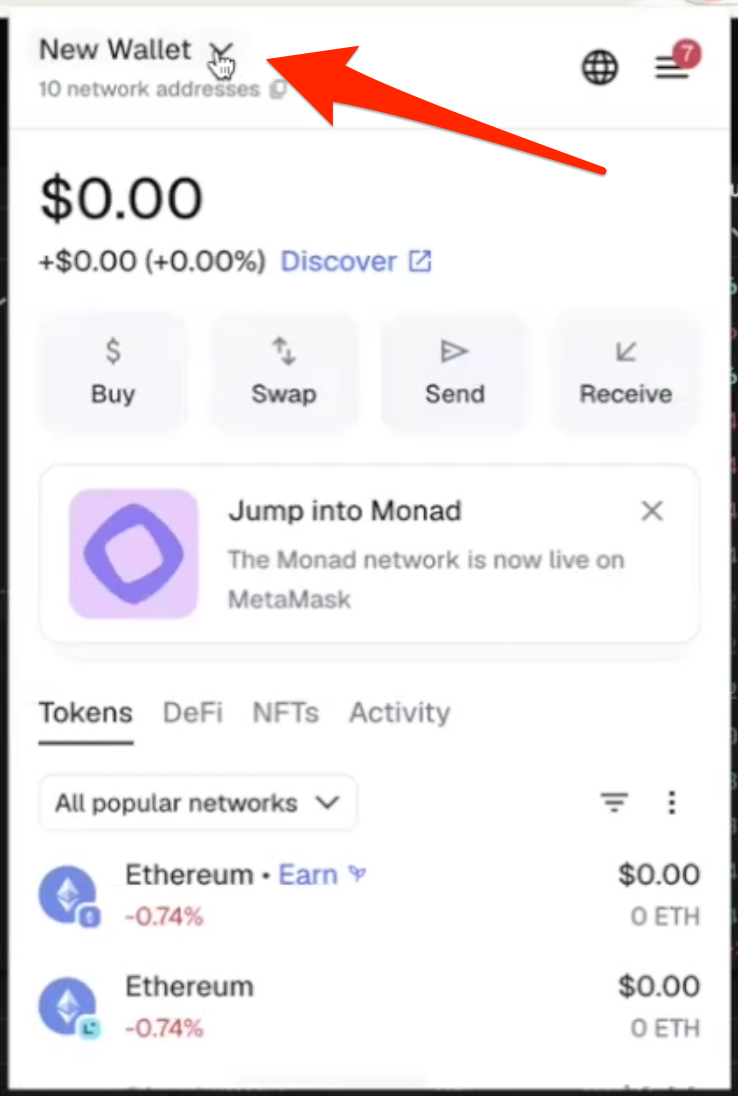
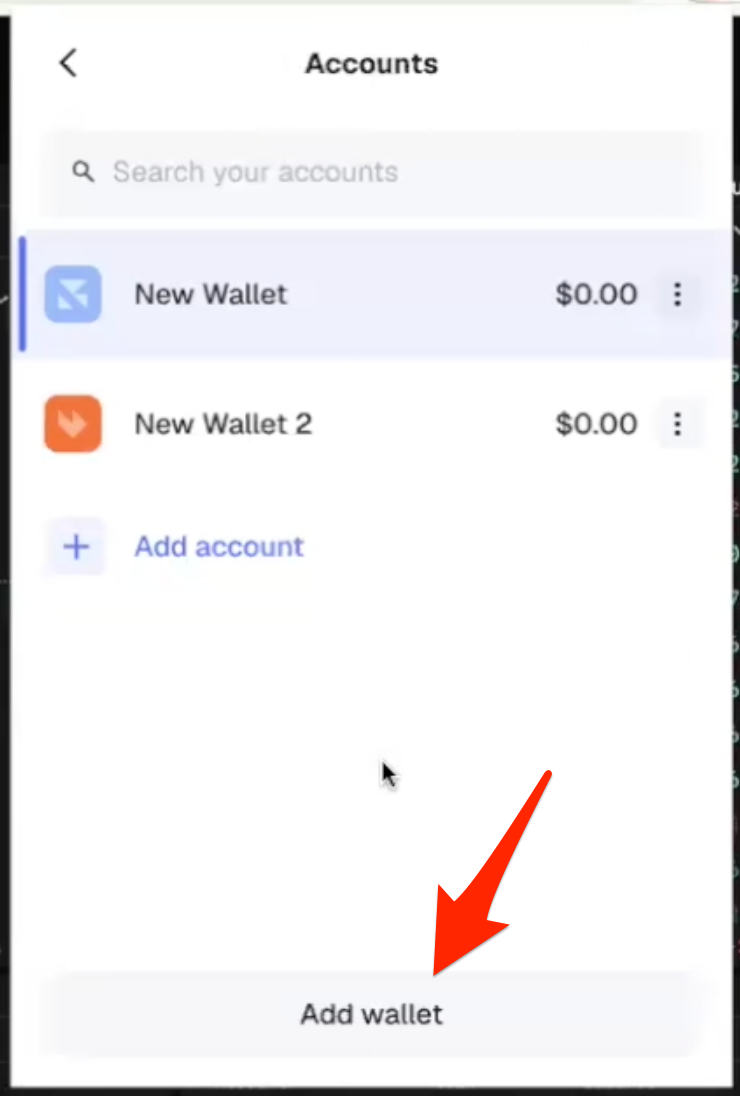
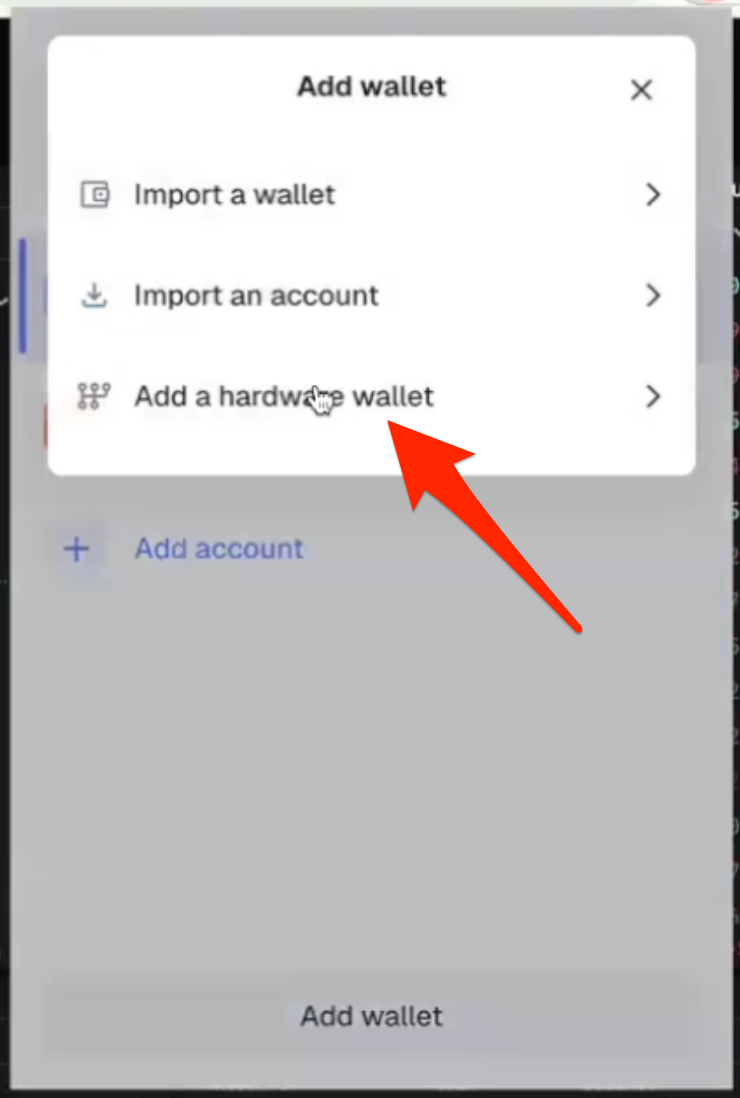
- Choose 'Ledger'

NOTE: you’ll need your wallet to be active, which means entering your PIN in if you need to. If you forget to do this you will get an error message, just enter the PIN and click “Continue” again and it should be fine.
NOTE: if you’re using a Ledger and you don’t already have blind signing enabled in the Ethereum app on the device, you will need to enable it to complete this transaction. Just open the Ethereum app, go to “app settings”, find the screen that says “blind signing disabled” and click both buttons on the device to enable it.
- Choose the correct account (make sure to choose the option that matches the address of the Arbitrum account you created on your hardware device for this), then click “Unlock”:
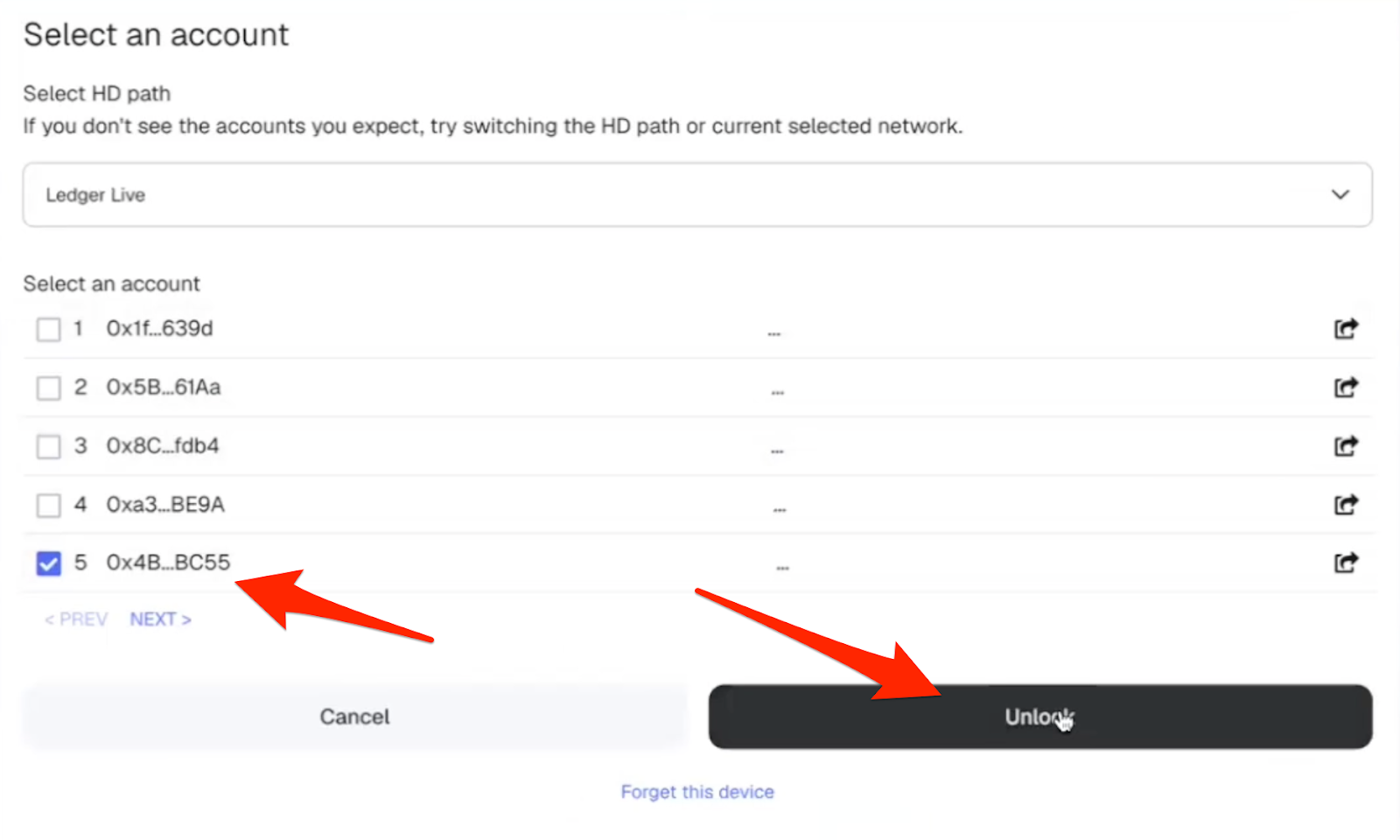
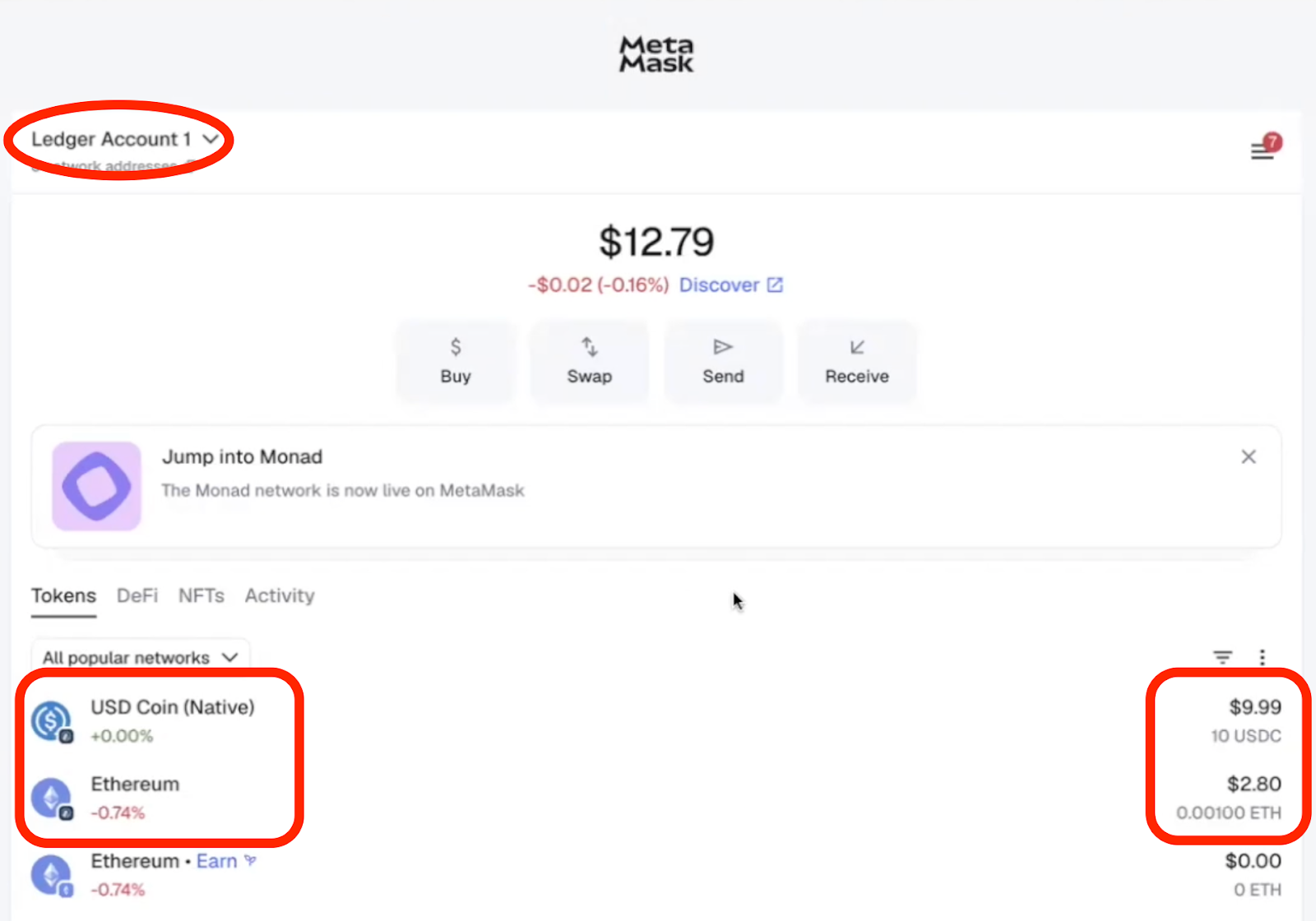
- Approve the connection on the hardware device. You should now be able to see your hardware wallet account in Metamask, along with the ETH and USDC balances on the Arbitrum network:
Step 3. Connecting Your Ledger Device to Polymarket
- Now, navigate to https://polymarket.com/ and click on 'Sign up'
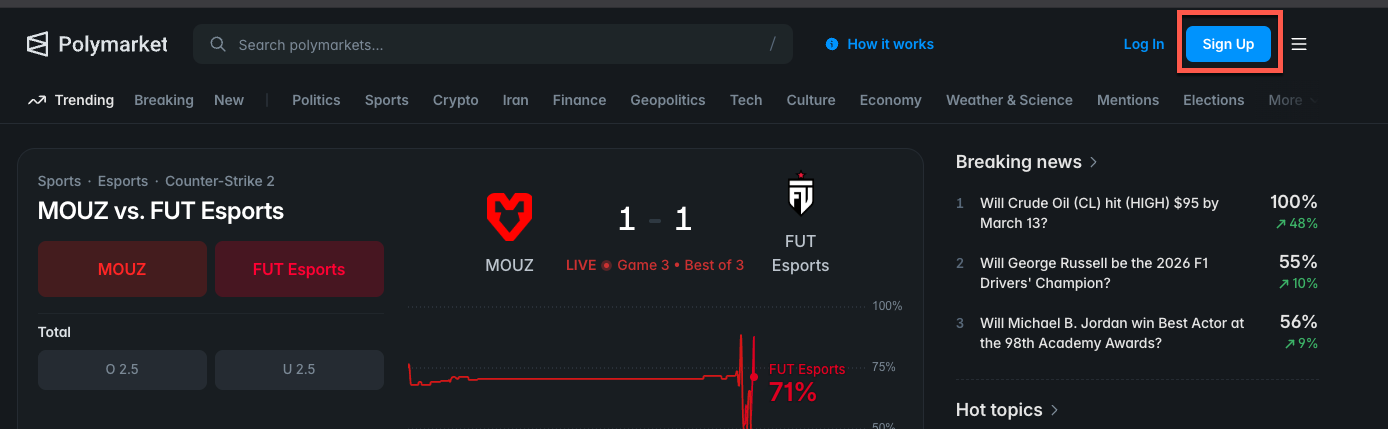
- Click on the 'Metamask' logo

- Click 'Connect'


-
Click 'confirm' and sign off on your Ledger device
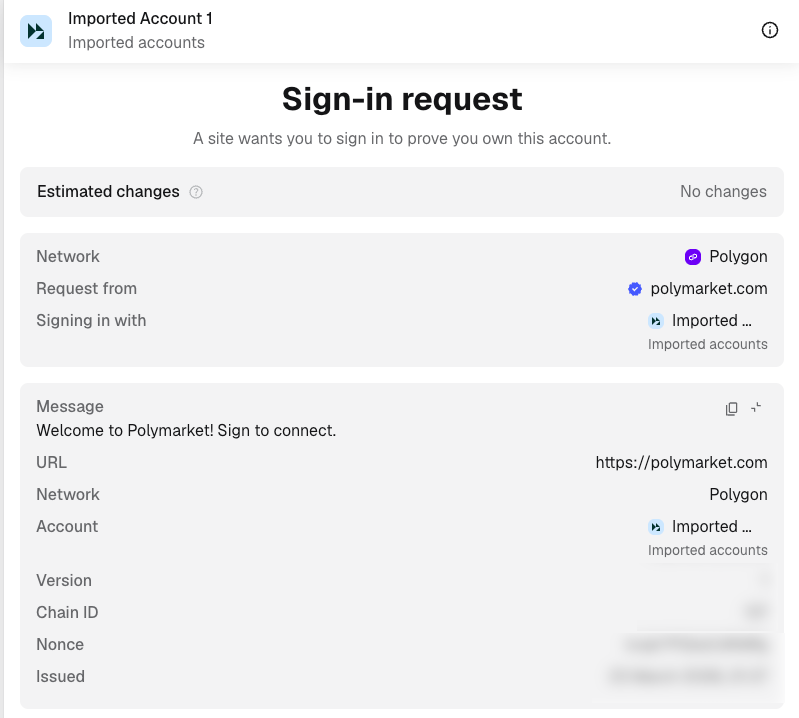

-
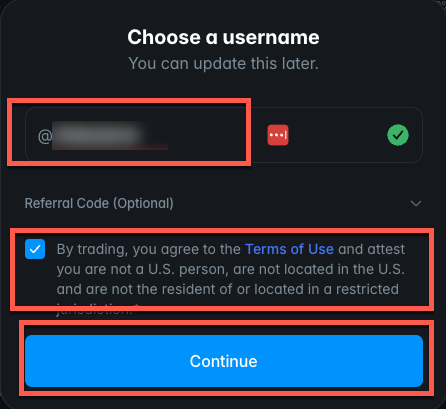
Enter a username as shown below
-
Check the box to confirm the terms of use
-
Click 'Continue'
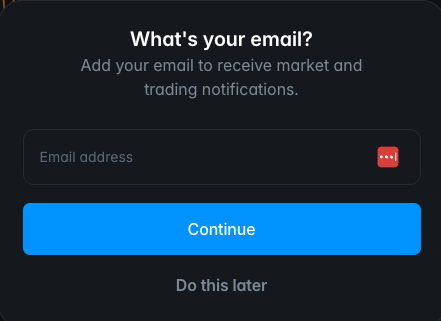
- If you wish to receive emails, enter your email address at this point, then click 'Continue. If you do not wish to receive emails, click 'Do this later'
- If there was no prompt for a username or email registration, click on 'Deposit'

- Click 'Enable Trading'
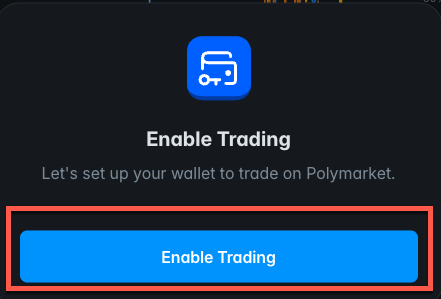
- Follow the prompts in Metamask & on your Ledger device to confirm the connection

Once the connection has been confirmed, proceed immediately with the remaining steps below before closing the deposit screen.
Step 4. Funding Your Polymarket Account
- Click on 'Deposit Funds'
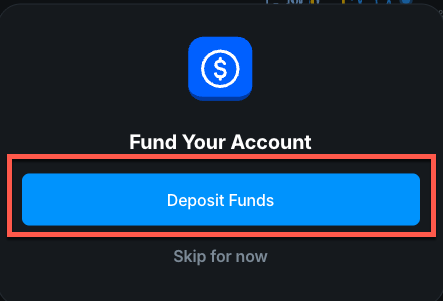
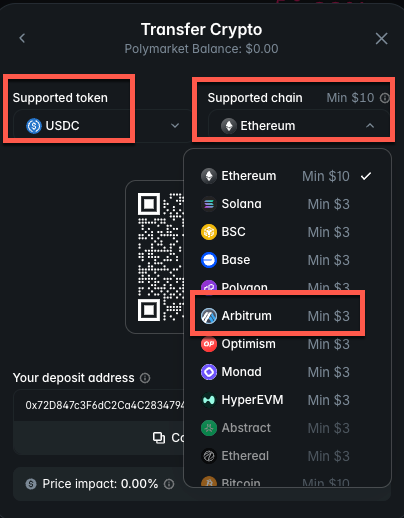
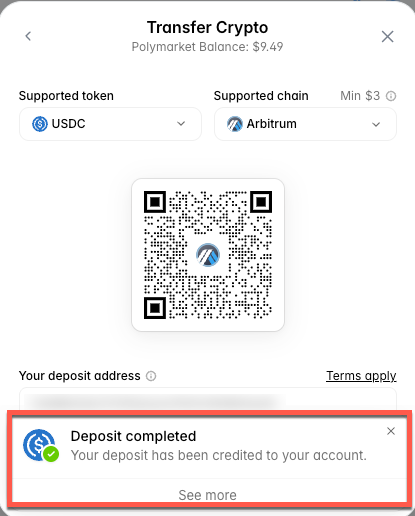
- Click on 'Transfer Crypto'

- Supported token: USDC
- Supported chain: Arbitrum
- Click 'Copy address'
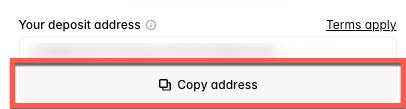
- In the Ledger app, click on 'Accounts'
- Click on the Arbitrum account you've funded & connected

- Click on 'USDC'

- Click 'Send'

- Paste the copied address from Polymarket into the 'recipients address' box
- Click 'Continue'

- Review the transaction. If everything looks correct, click 'Continue'

- Follow the prompts on your Ledger device to confirm the deposit

- Once your deposit is complete, you will see a confirmation message on Polymarket
- You should now see a balance on your Polymarket portfolio