MM | How to Import an Arbitrum account on your Ledger into MetaMask
This guide assumes you have set up a new Arbitrum account on your Ledger device to use for your trading activities. If you haven't done this already, please follow the guide linked below to do so, then return to this guide:
How to add an Arbitrum account to your Ledger hardware wallet
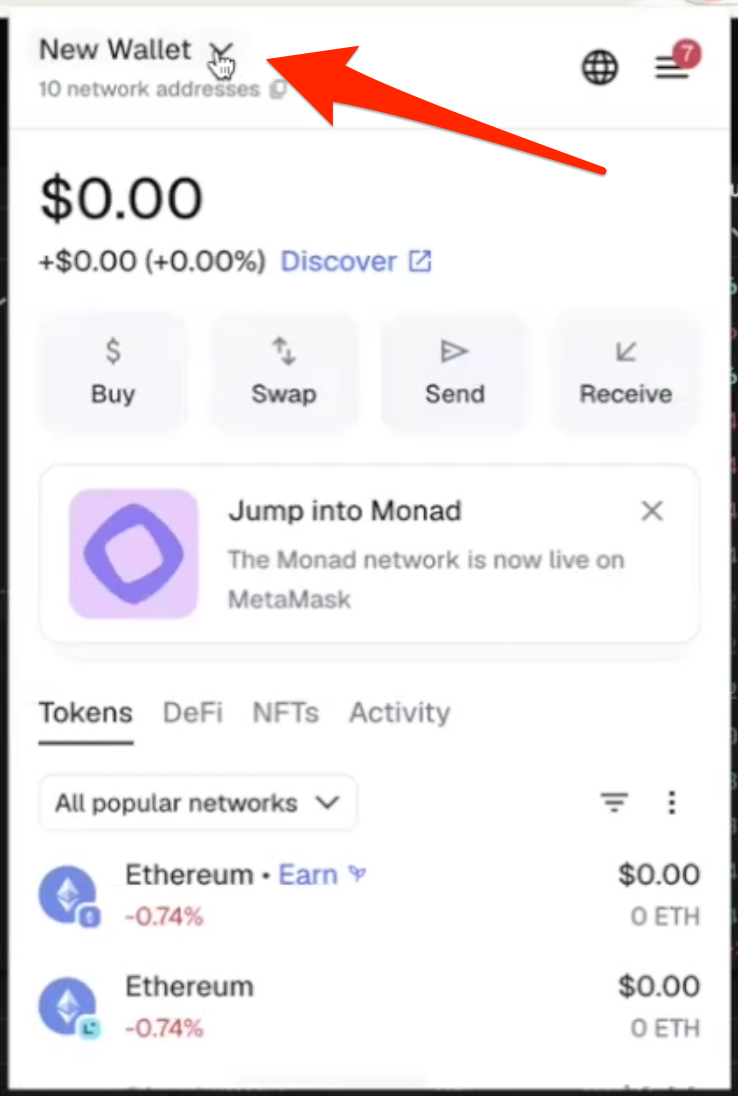
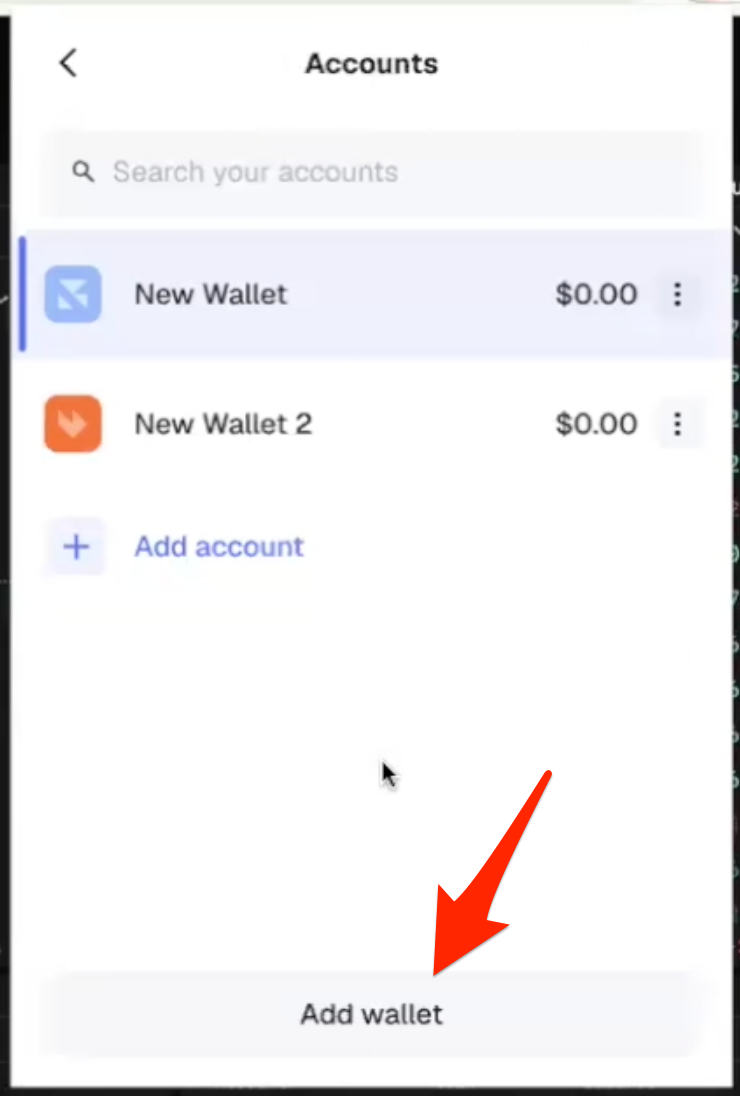
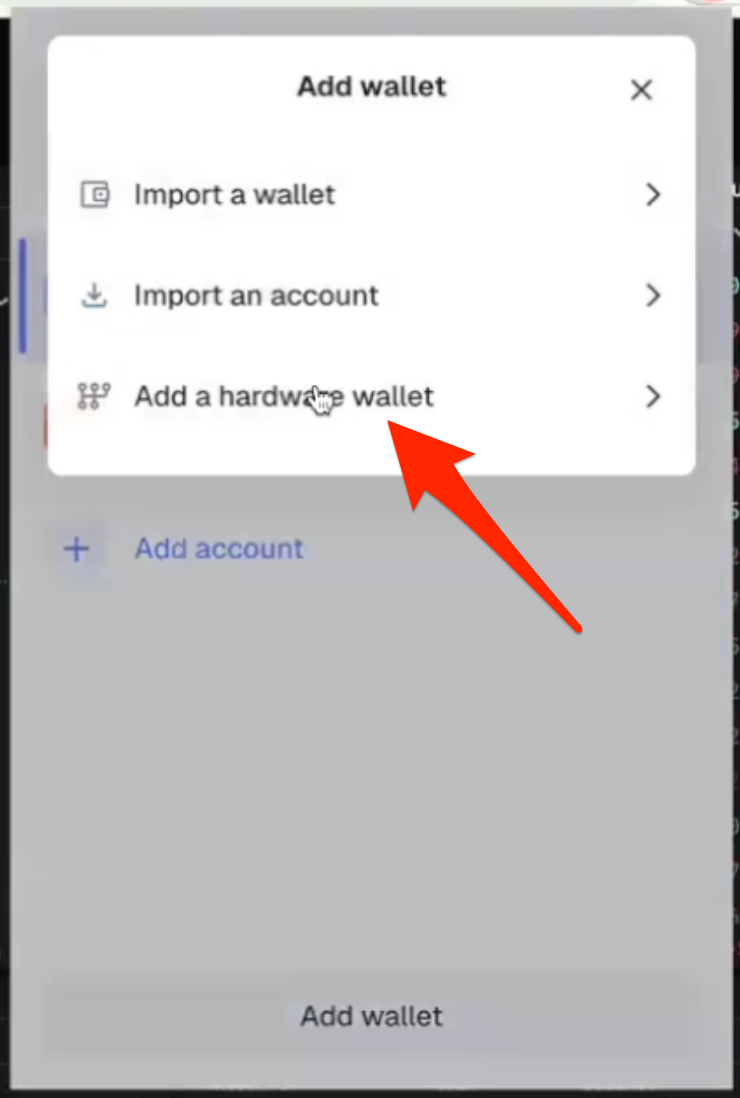
- Open up Metamask, click the dropdown next to your account name, then click “Add wallet” > “Add a hardware wallet”:
- Choose 'Ledger'
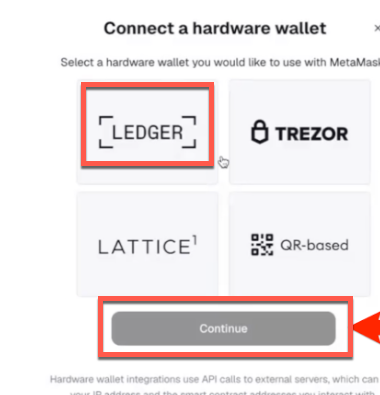
NOTE: you’ll need your wallet to be active, which means entering your PIN in if you need to. If you forget to do this you will get an error message, just enter the PIN and click “Continue” again and it should be fine.
NOTE: if you’re using a Ledger and you don’t already have blind signing enabled in the Ethereum app on the device, you will need to enable it to complete this transaction. Just open the Ethereum app, go to “app settings”, find the screen that says “blind signing disabled” and click both buttons on the device to enable it.
- Choose the correct account (make sure to choose the option that matches the address of the Arbitrum account you created on your hardware device for this), then click “Unlock”:
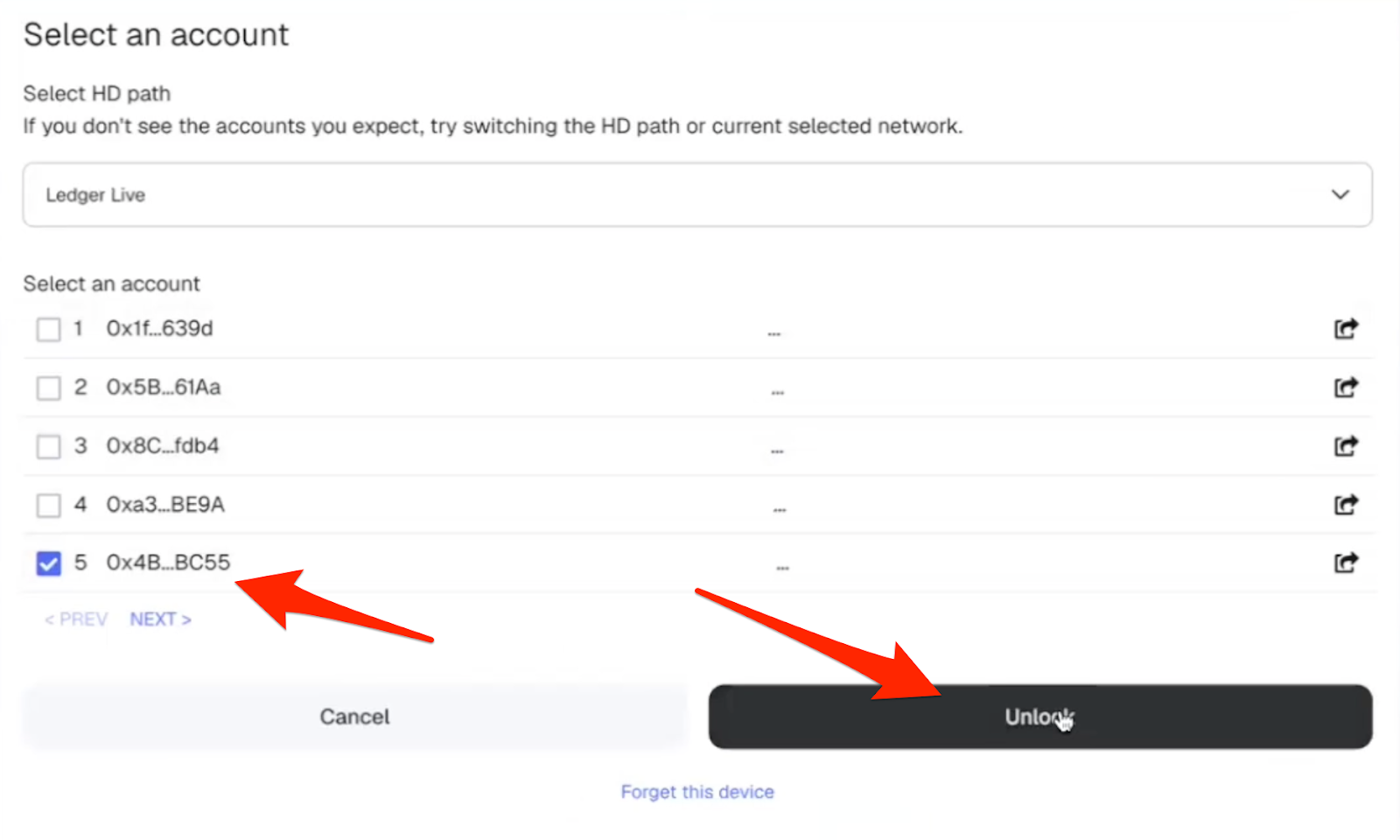
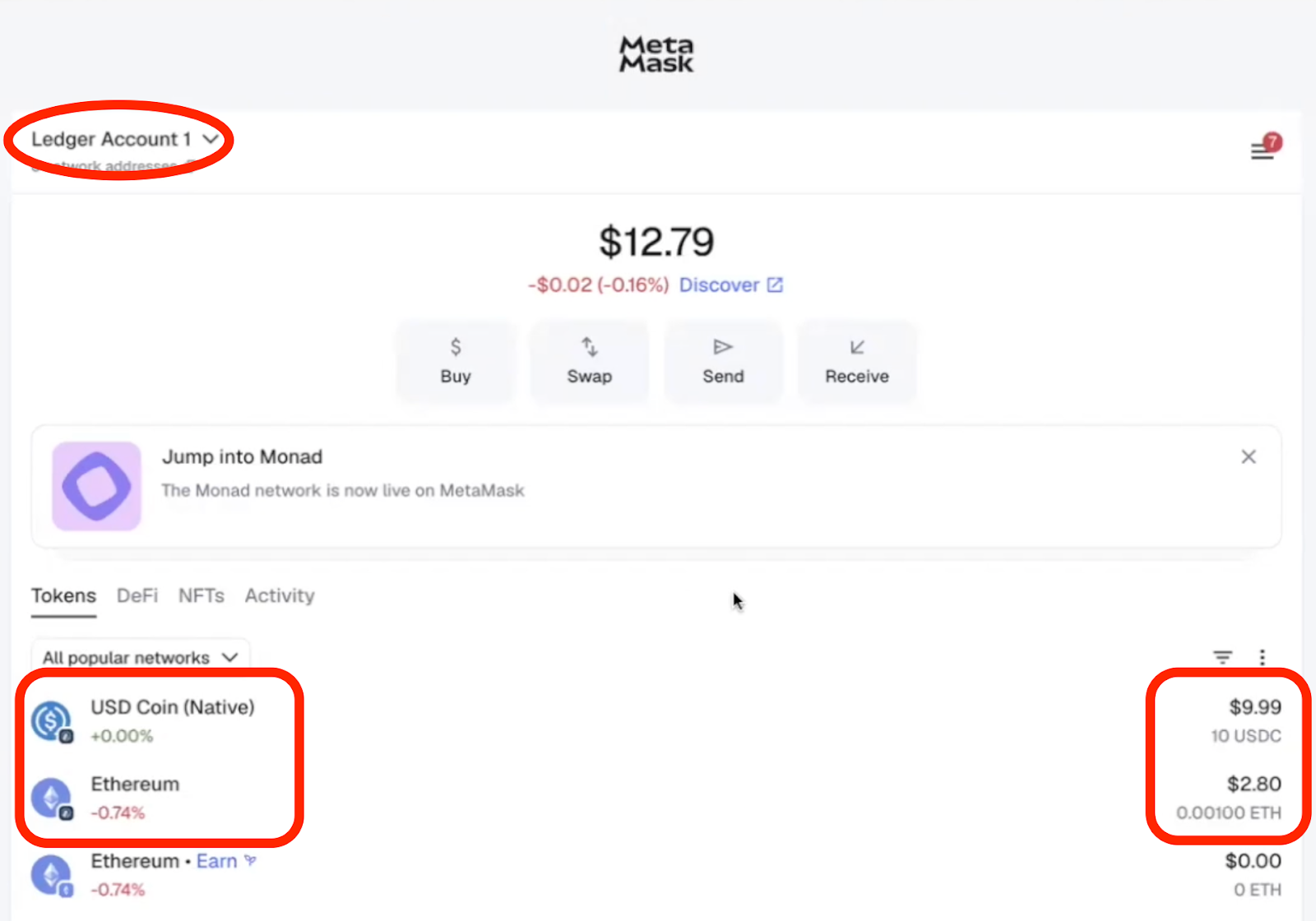
- Approve the connection on the hardware device. You should now be able to see your hardware wallet account in Metamask, along with the ETH and USDC balances on the Arbitrum network: