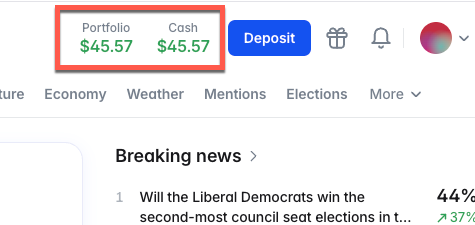
RW03 - How to connect your Rabby wallet to Polymarket & fund your account
Important before you begin:
Please take a moment to review the geo-blocked countries linked below:
https://docs.polymarket.com/api-reference/geoblock
If your country is in the list, you’ll need to install & activate a VPN with the location set to a non-restricted location (or supported country) before logging into the Polymarket website
It is highly recommend that you choose an unrestricted location that is geographically close to you to help cut down on network latency
Connecting your Rabby Wallet to Polymarket
- Go to: https://polymarket.com/
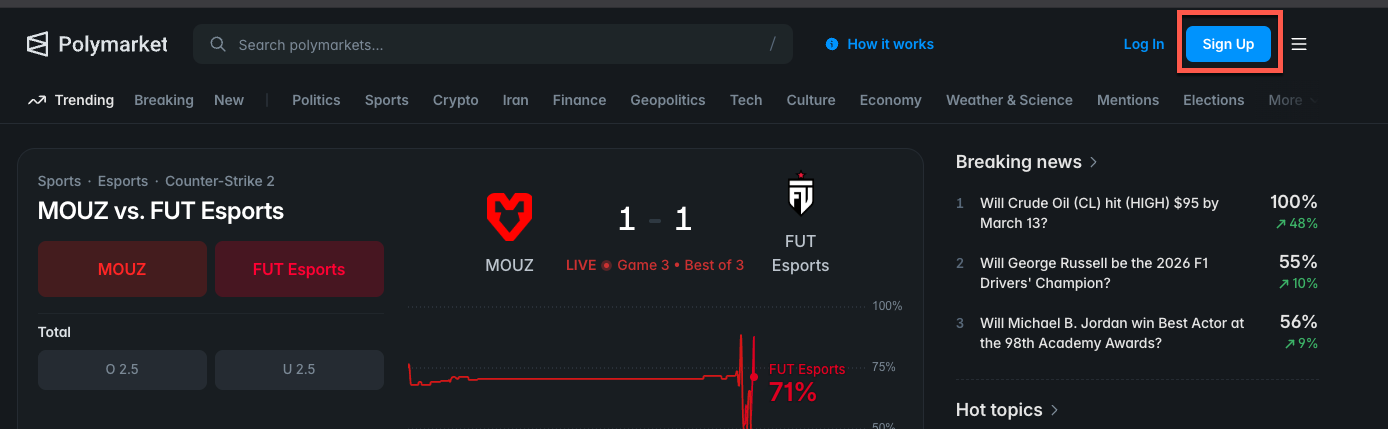
- Click on ‘Sign Up’
- Click on the Rabby Wallet icon

- Click ‘Connect’

- Click ‘Sign’
- Click ‘Confirm’

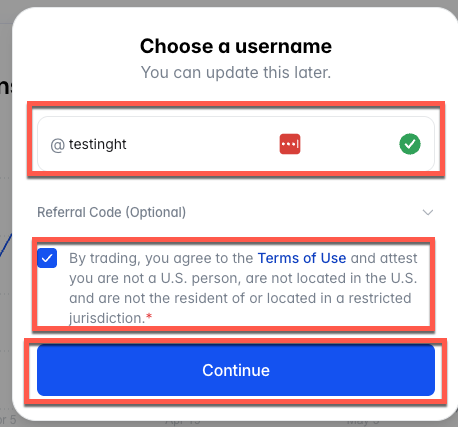
- Enter a username
- Ensure the box is checked
- Click ‘Continue’
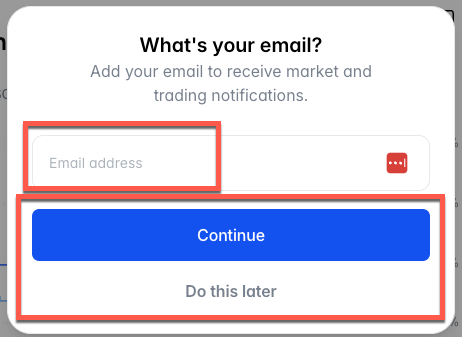
- Enter your email address & click ‘Continue’ if you’d like email updates
- If you’d rather not, click ‘Do this later’
- Click ‘Enable Trading’
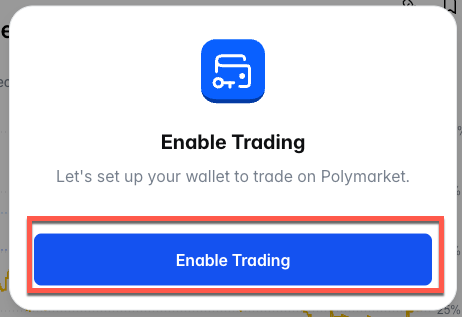
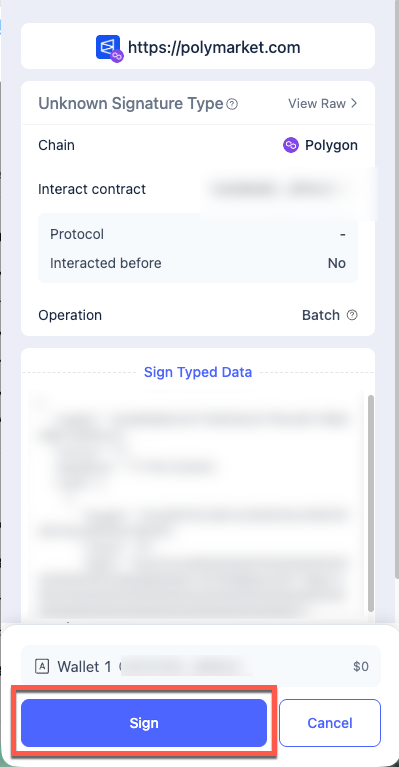
- Click ‘Sign’
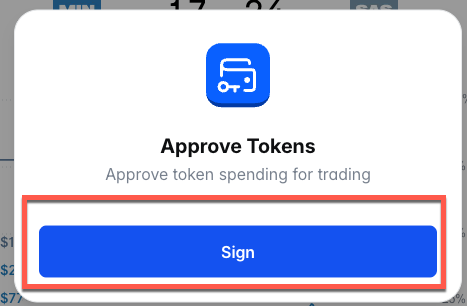
- Click ‘Sign’
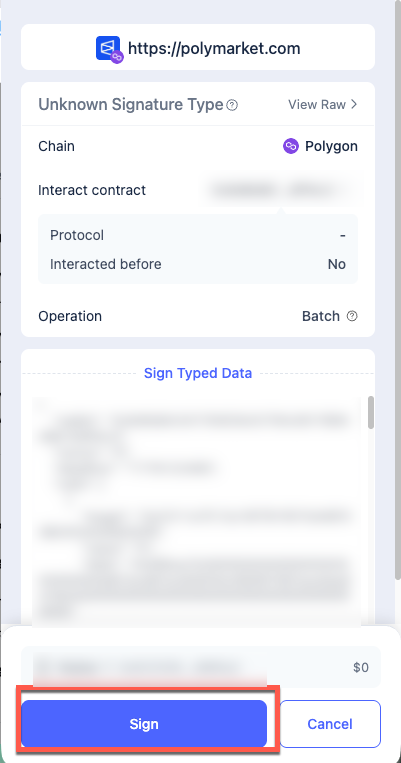
- Click ‘Confirm’
- Click ‘Enable Auto-redeem’
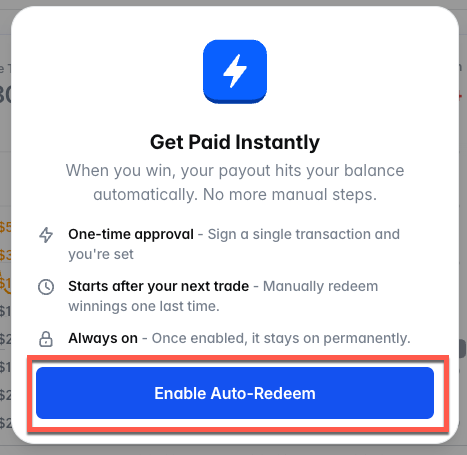
- Click ‘Sign’
- Click ‘Continue’
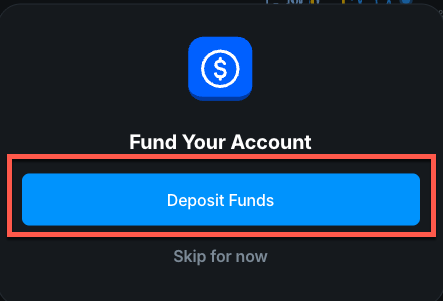
Funding Your Polymarket Account
- Click 'Deposit funds'
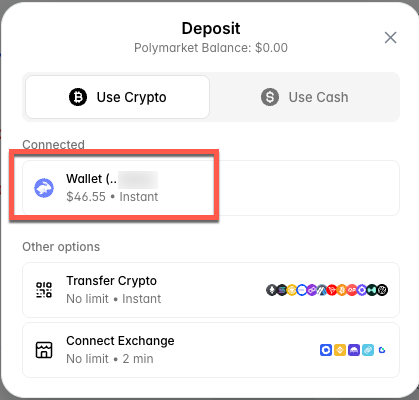
- Click on the connected Rabby wallet
- Your USDC balance will be displayed for the connected Rabby wallet
- Click 'Continue'
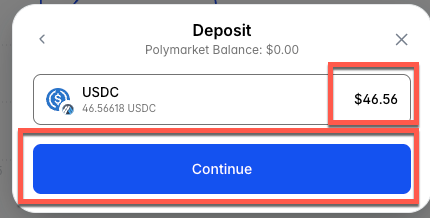
- Enter the amount you wish to deposit
- Click 'Continue'
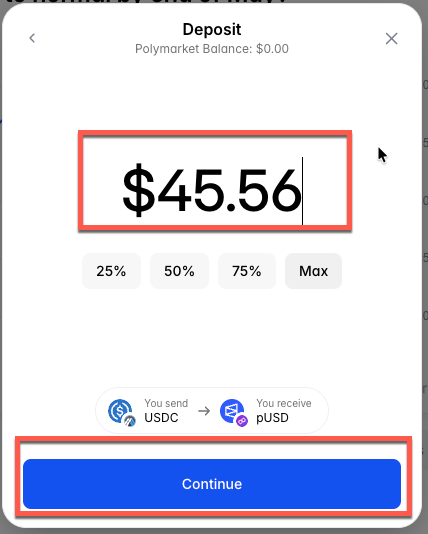
- Check that all details look correct
- Click 'Confirm oder'
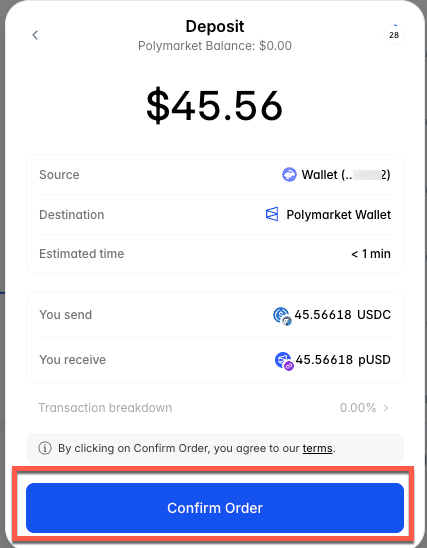
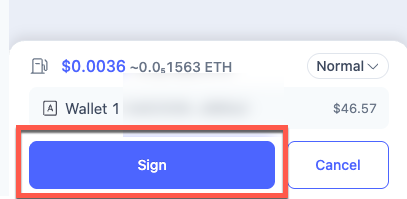
A transaction will appear in your Rabby wallet that needs to be confirmed.
- Click 'Sign'
- Click 'Continue'
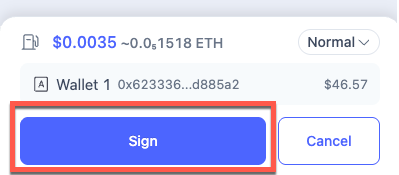
Another transaction will appear in your Rabby wallet that needs to be confirmed.
- Click 'Sign'
- Click 'Continue'
You will now see a screen that confirms the deposit is processing
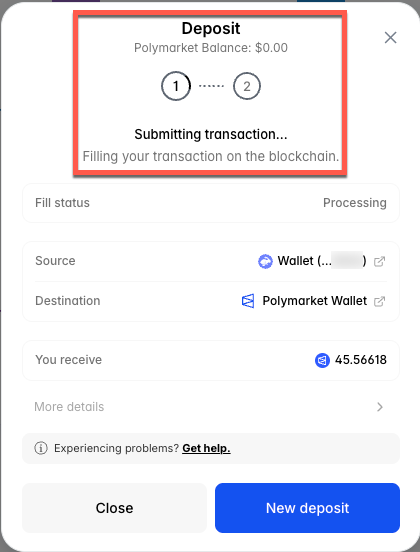
The deposit can take up to 1 minute to process. Once it's completed, you should receive the confirmation shown below
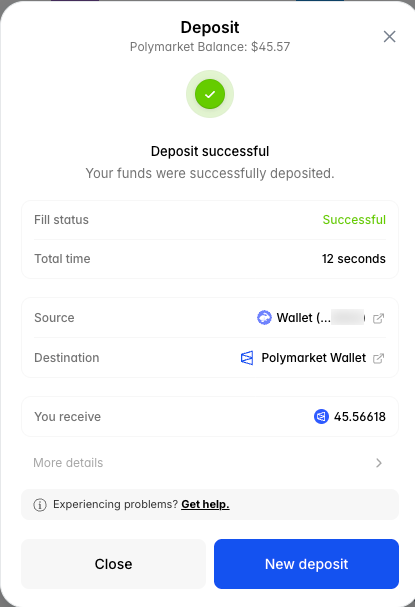
You can now click 'Close, and you should see your balance reflected on Polymarket