TG - How to connect your Tangem wallet to Polymarket & fund your account
Reminder: Activate your VPN with a non-restricted location prior to opening the Polymarket website.
Step 1. Adding a Polygon Account to Your Tangem
- Open the Tangem app on your phone and click on the 3 dots in the top right of the screen
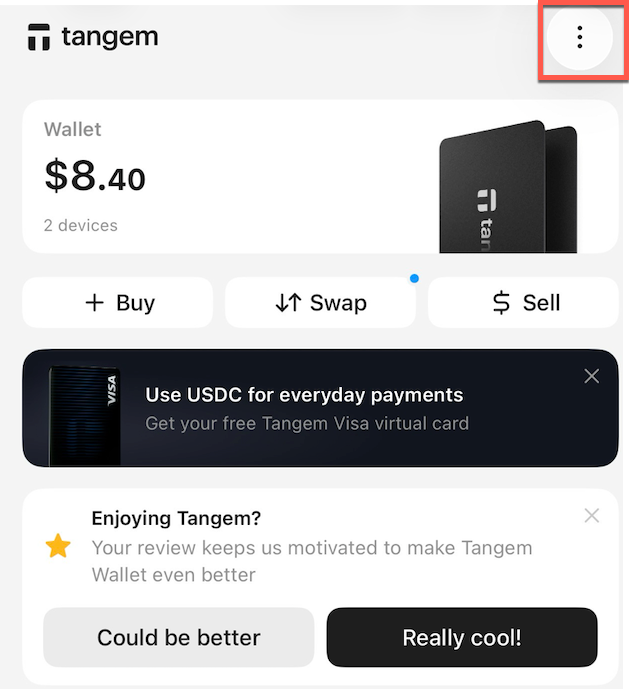
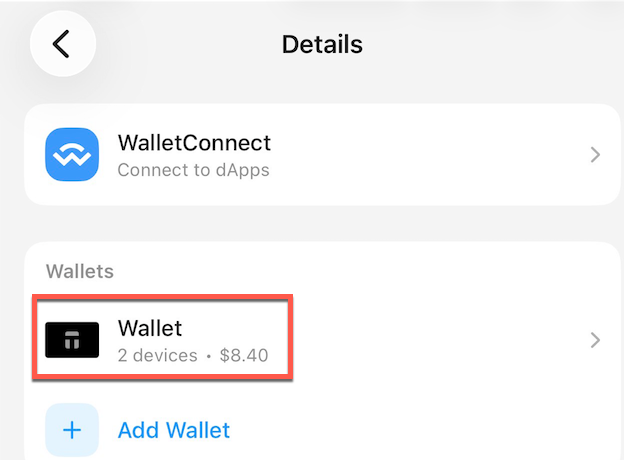
- Click on the wallet you wish to use for the Polygon network
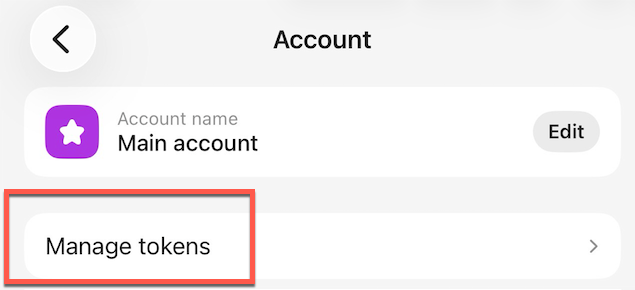
- Click on 'Manage Tokens'
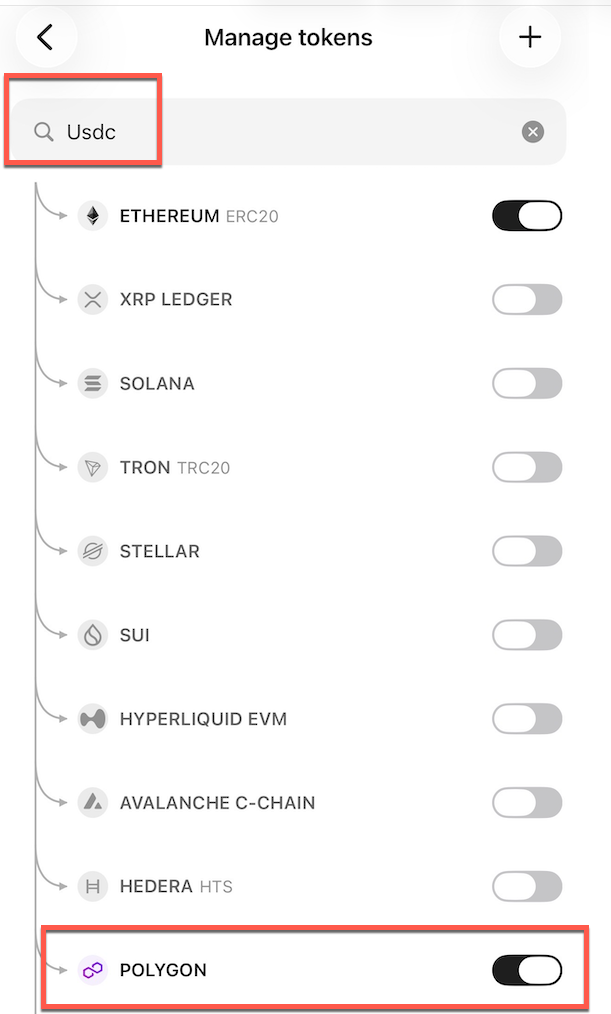
- Search 'USDC'
- Ensure that you've toggled it ON for the Polygon network
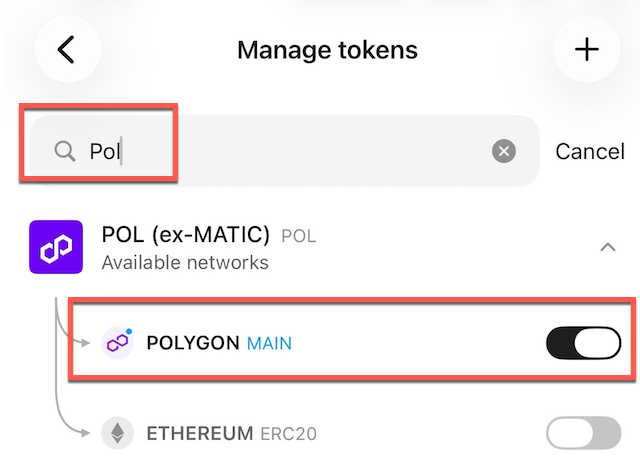
- Search for 'pol'
- Ensure that 'POL' is toggled ON for the Polygon network
Step 2. Connecting Your Tangem wallet to Polymarket
- Navigate to https://polymarket.com/ and click on 'Sign up'
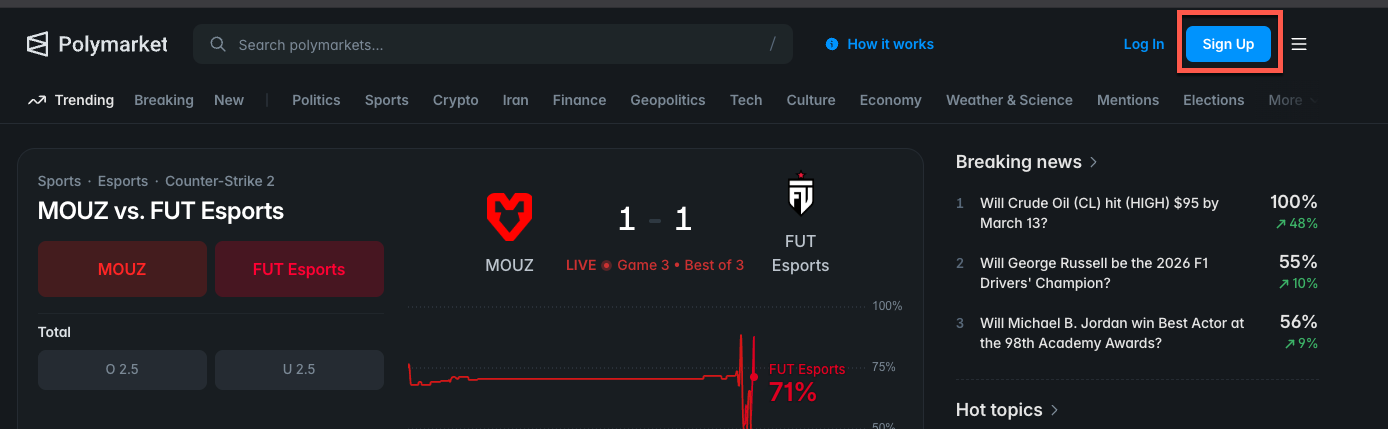
- Click on the 'WalletConnect' logo

- Open the Tangem app on your phone and click on the 3 dots in the top right of the screen
- Click 'WalletConnect'
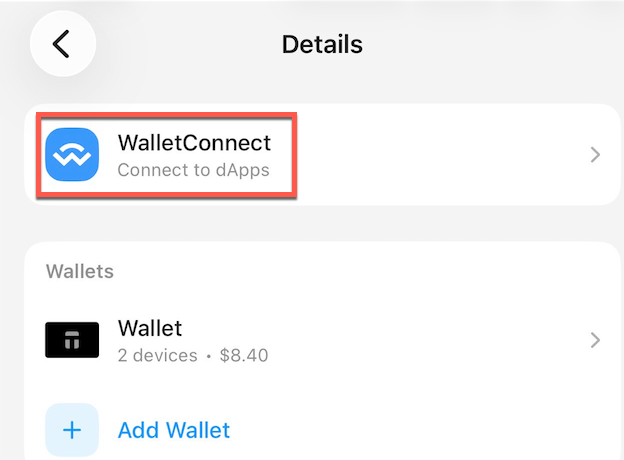
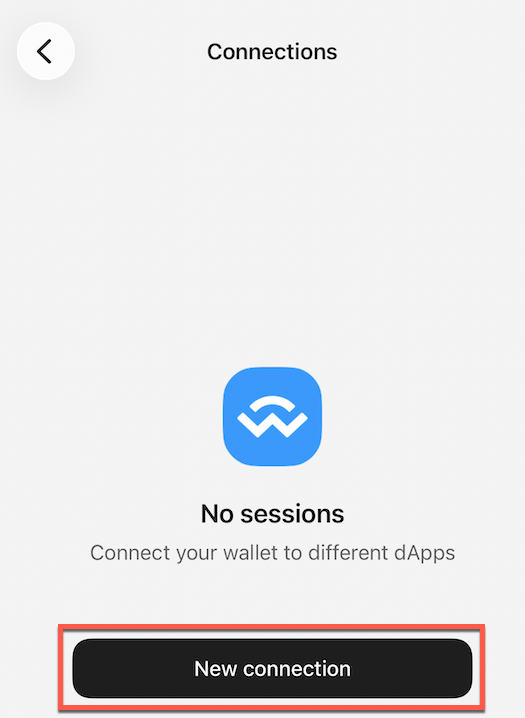
- Click 'New Connection
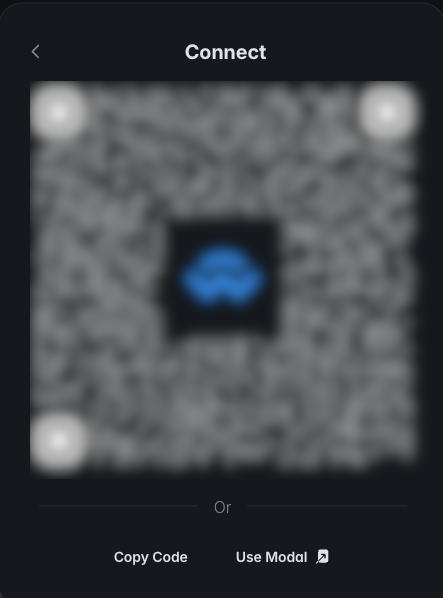
- Scan the QR code on Polymarket
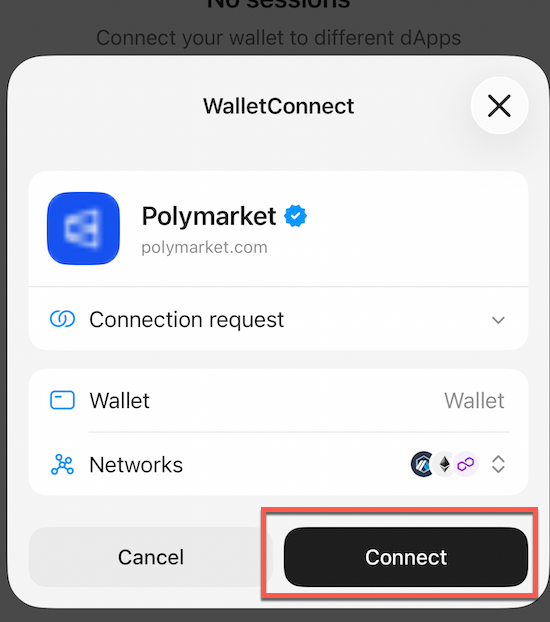
- Click 'Connect'
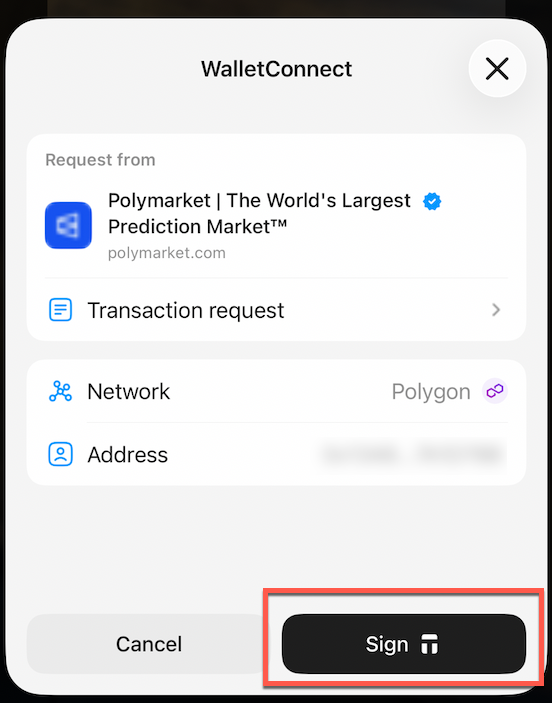
- Click 'Sign'.
Note: You may need to wait 5 minutes for this transaction to appear on the Tangem app. If nothing occurs after 5 minutes, please try again.
- Follow the prompts to verify your Tangem card
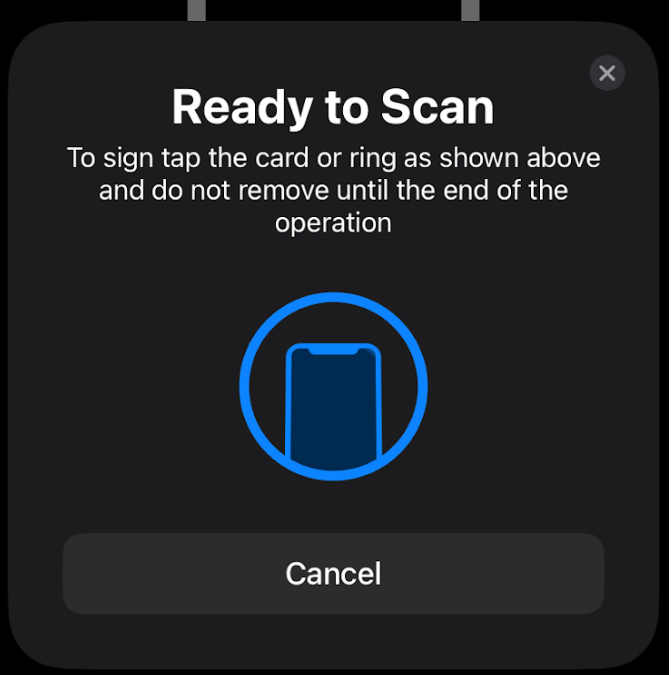
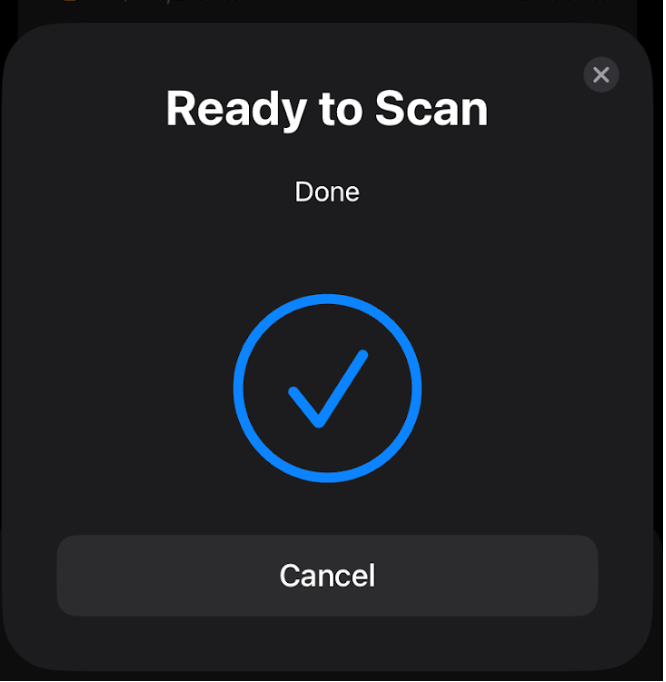
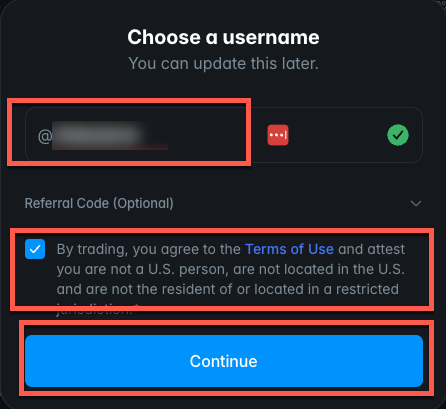
- Enter a username
- Check the box to confirm the terms of use
- Click 'Continue'
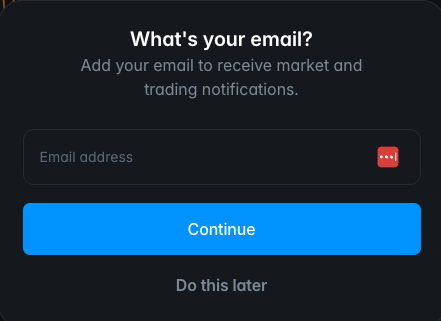
- if you wish to receive emails, enter your email address at this point, then click 'Continue. If you do not wish to receive emails, click 'Do this later'
- Click 'Enable Trading'
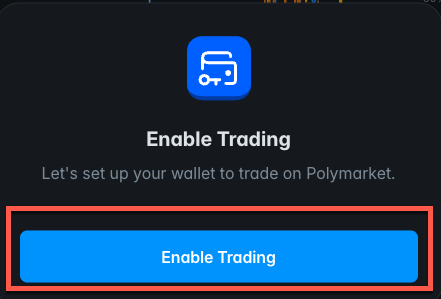
- Follow the prompts on your Tangem app to confirm the connection
Step 3. Funding Your Polymarket Acount
- Click on 'Deposit Funds'
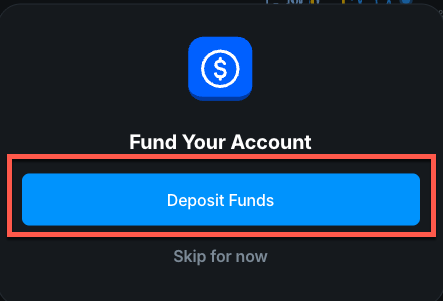
- Click on 'Transfer Crypto'
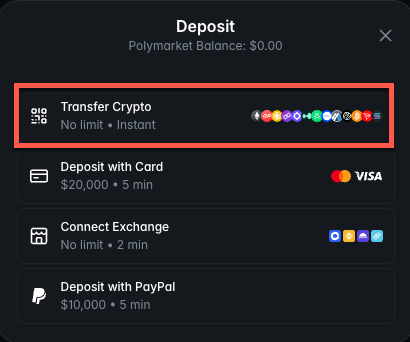
- Supported token: USDC
- Supported chain: Arbitrum
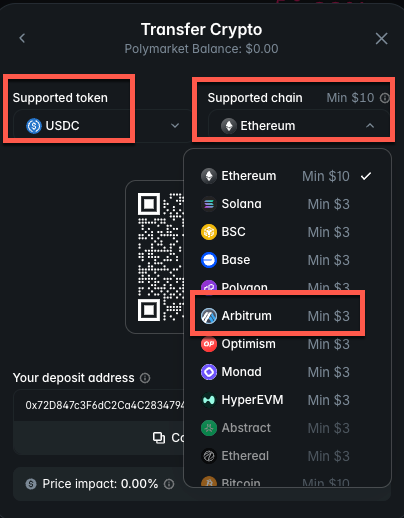
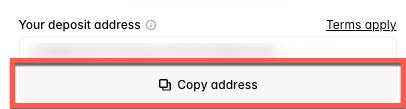
- Click 'Copy address'
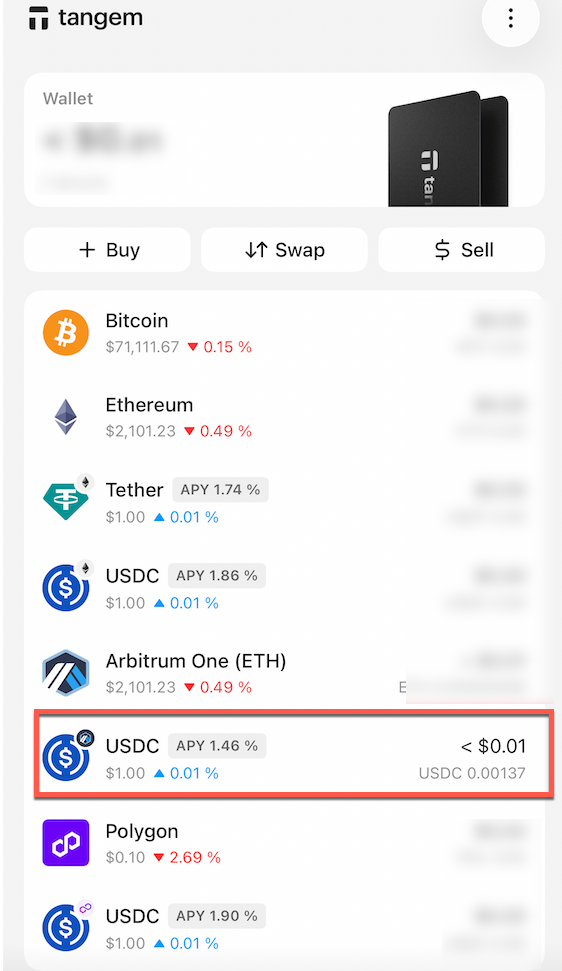
- In the Tangem app, click on 'USDC' on the Arbitrum network
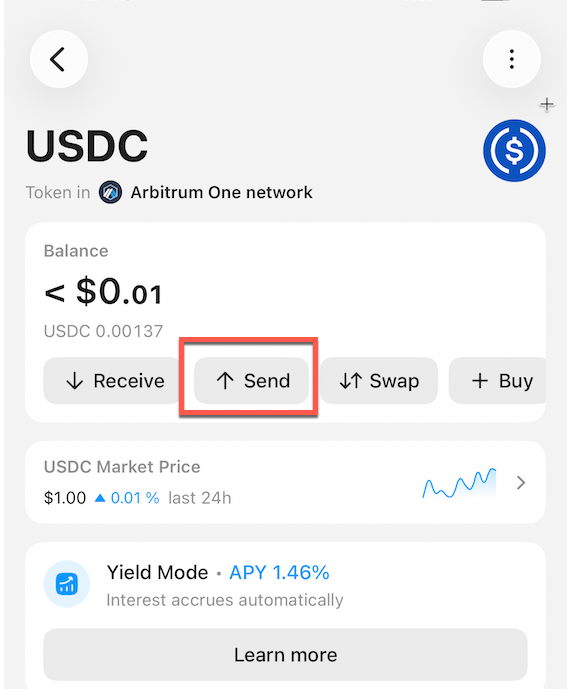
- Click 'Send'
- Enter the amount you wish to deposit
- Click 'Next'
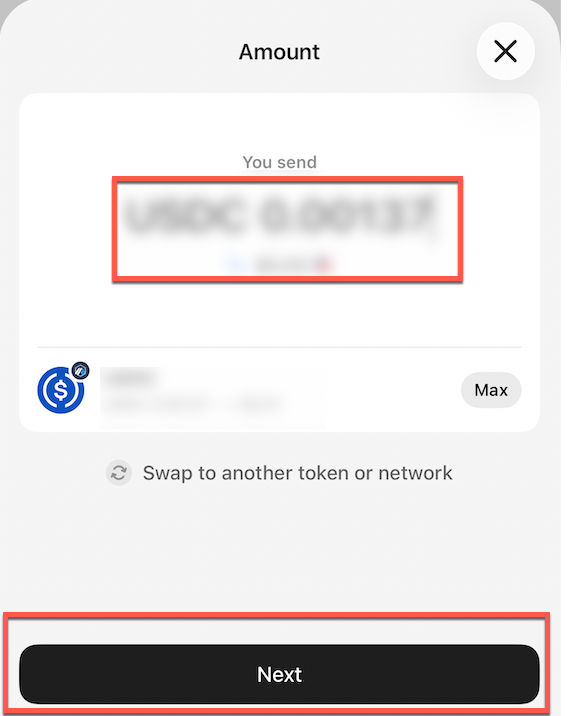
- Ensure the amount is correct
- Paste the wallet address copied from Polymarket in the 'Recipient' field
- Click 'Send'
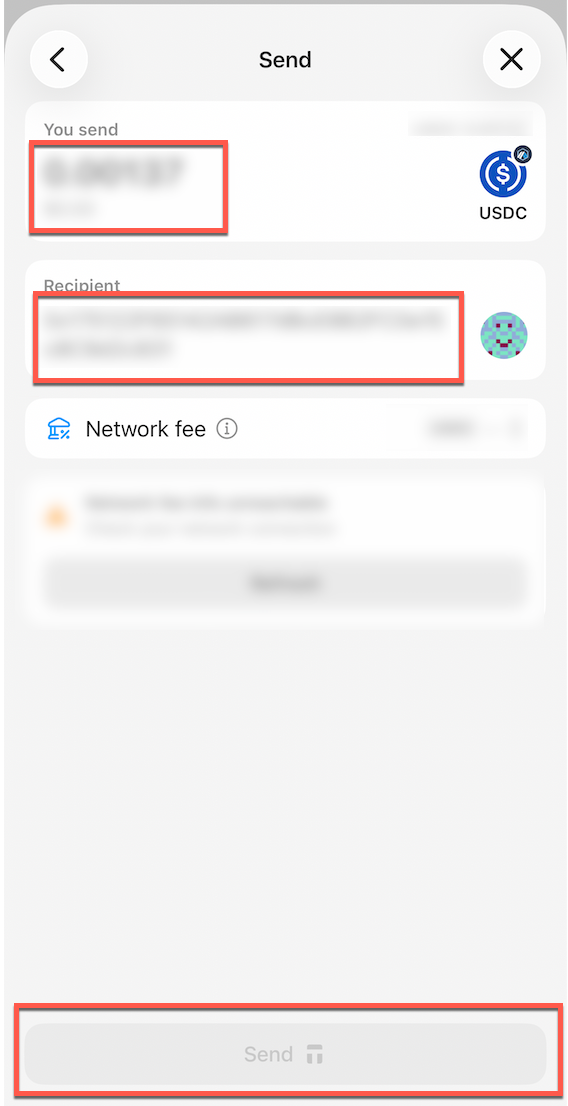
- Follow the prompts to confirm the transaction
- Once your deposit is complete, you will see a confirmation message on Polymarket
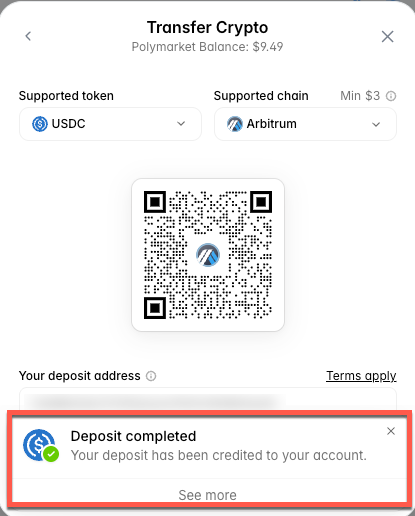
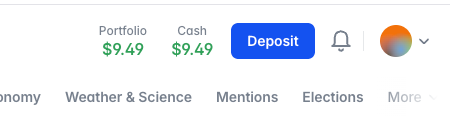
You should now see a balance on your Polymarket portfolio