TZ - How to transfer POL & USDC to a Trezor Wallet On The Polygon Network
This guide assumes that you have purchased $10 worth of POL & your desired amount of USDC on Coinbase already. If you have not yet done this, please do this now.
This guide shows how to transfer from the Coinbase Exchange as an example, however you may have your POL & USDC on another exchange or wallet, in which case you can transfer it directly to Trezor from there. If you do transfer it from somewhere else the overall process will be similar, although the interface may look different.
- Go to Coinbase, and click on “Send crypto” in the menu at the bottom right:

- That will bring up this dialog box:

- Open your Trezor Suite app with the device connected
- Click on your Polygon account from the menu on the left

- Click on 'Receive'

- Click on 'Show full address'

- Follow the instructions on your device to confirm

- Click on 'Copy'

- Paste the wallet address in the box on Coinbase

- Click on 'Add Contact'

- Give the saved contact a name
- Click the “Save” button:

- Click on the address you just saved

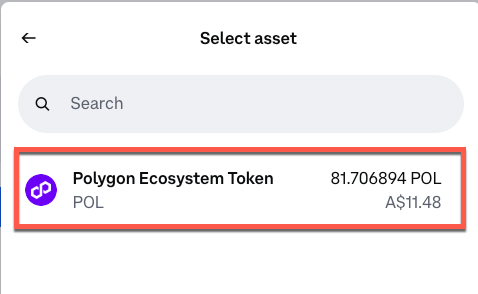
- Next, choose the token to send (in this case POL):
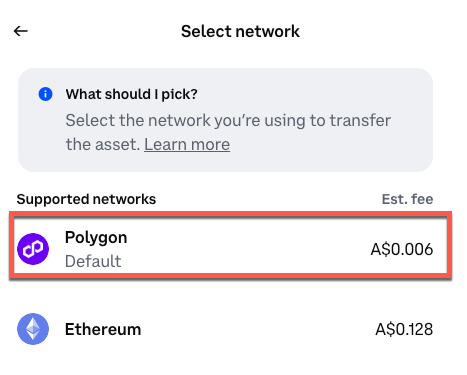
- Make sure you’re sending on the correct network, that matches with the network you chose at the destination (in this case Polygon):
- Click on 'Yes, it's supported'

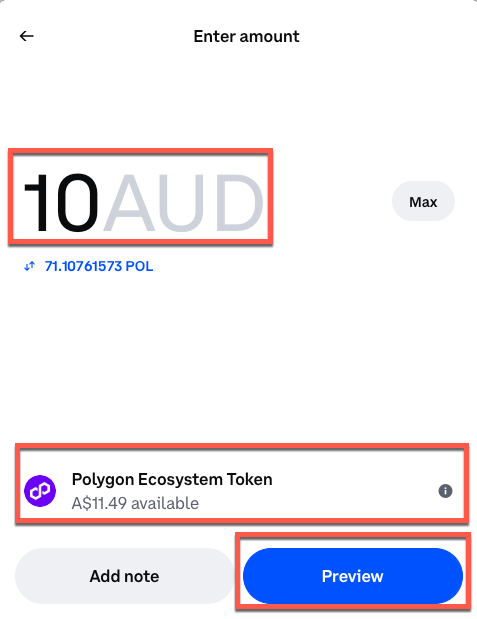
- Enter the amount you want to send. If you want to send all that you have available to send (which will be shown near the bottom of the dialog box) just hit the “Max” button.
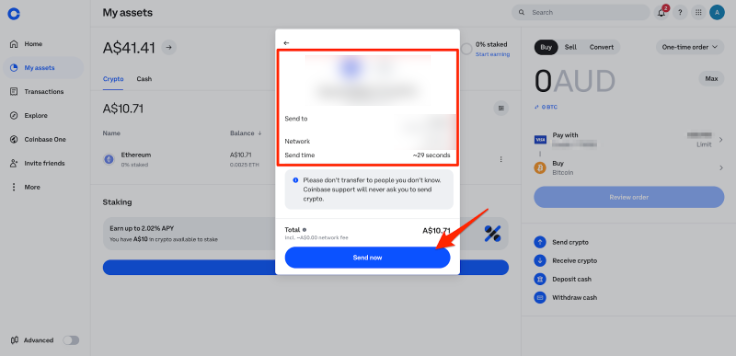
- Check the transaction details. As a double check, make sure that the first 4 and last 4 characters of the address match the address you got from Trezor, and also that the network is correct.
NOTE: this part is very important - if you try to send to the wrong address, or select the wrong network, you WILL lose your tokens.
- If everything looks correct, hit the “Send now” button:
- At this point you may be asked to verify the transaction with 2FA or a passkey. Once you’ve completed that, you should get a confirmation that the POL has been sent:
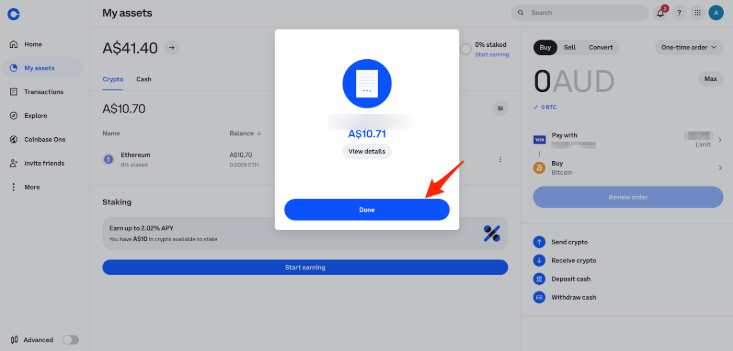
- Click the “Done” button to close the dialog box.
- Go back to the Trezor Suite app on your computer to confirm that the POL has been received there. It may take a couple of minutes to arrive, so don’t be concerned if it’s not immediate:
If it hasn’t arrived after a couple of minutes, it’s likely that Coinbase is holding it pending further verification or completion of one of their scam test. Check your email inbox and/or notifications on Coinbase, and complete whatever verification they ask for.
- Navigate back to your Coinbase account
- Click on 'My Assets > Cash (You should see your USDC balance there)
- Click “Send USDC” in the menu on the right hand side.

That will bring up the same dialog box as in the POL transfer, asking for the address to send to. You should be able to send to the address that you saved in the previous step, even though you’re sending USDC this time rather than POL, because both are being sent on the Polygon network and Trezor has a single Polygon receiving address.
- Click on your saved Ledger address
- Double check that the address matches by going back to your Ledger Live app and pulling up the receiving address for USDC on Polygon
- Once you’ve selected & verified the address, choose the network (Polygon again)
- Enter the amount you wish to send in exactly the same way as you did for POL.
That should bring you to the confirmation screen:

- Again, make sure you double check the address and the network!
- Click “Send now” to initiate the transaction. Once it is confirmed by Coinbase, you can then head back over to the Trezor Suite app to verify that the USDC arrives in your Trezor
That’s it! You now have POL and USDC, both on the Polygon network, in your Trezor wallet.